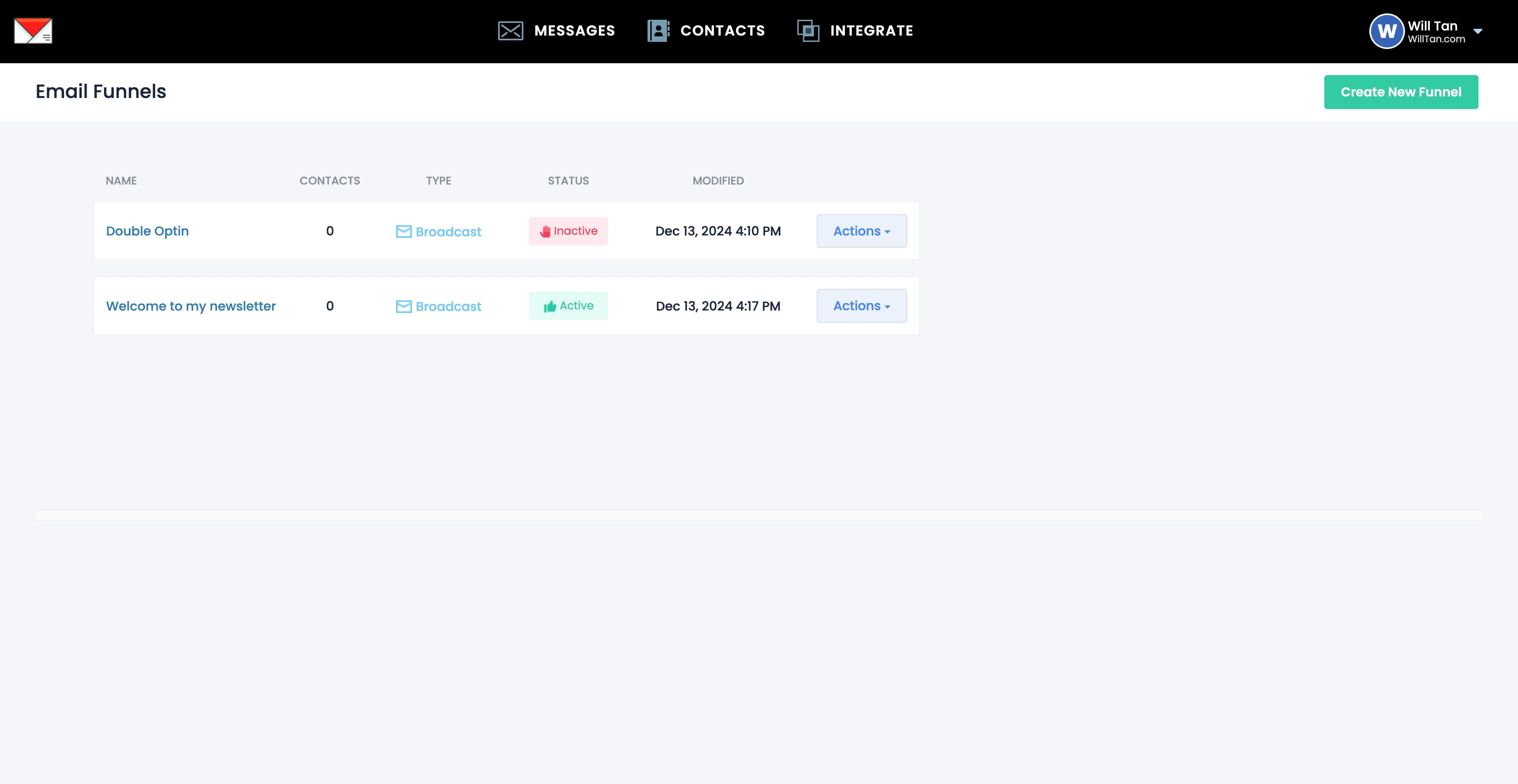
4. Create An Email Funnel
Navigate to https://app.willsend.email/funnels
Click this icon
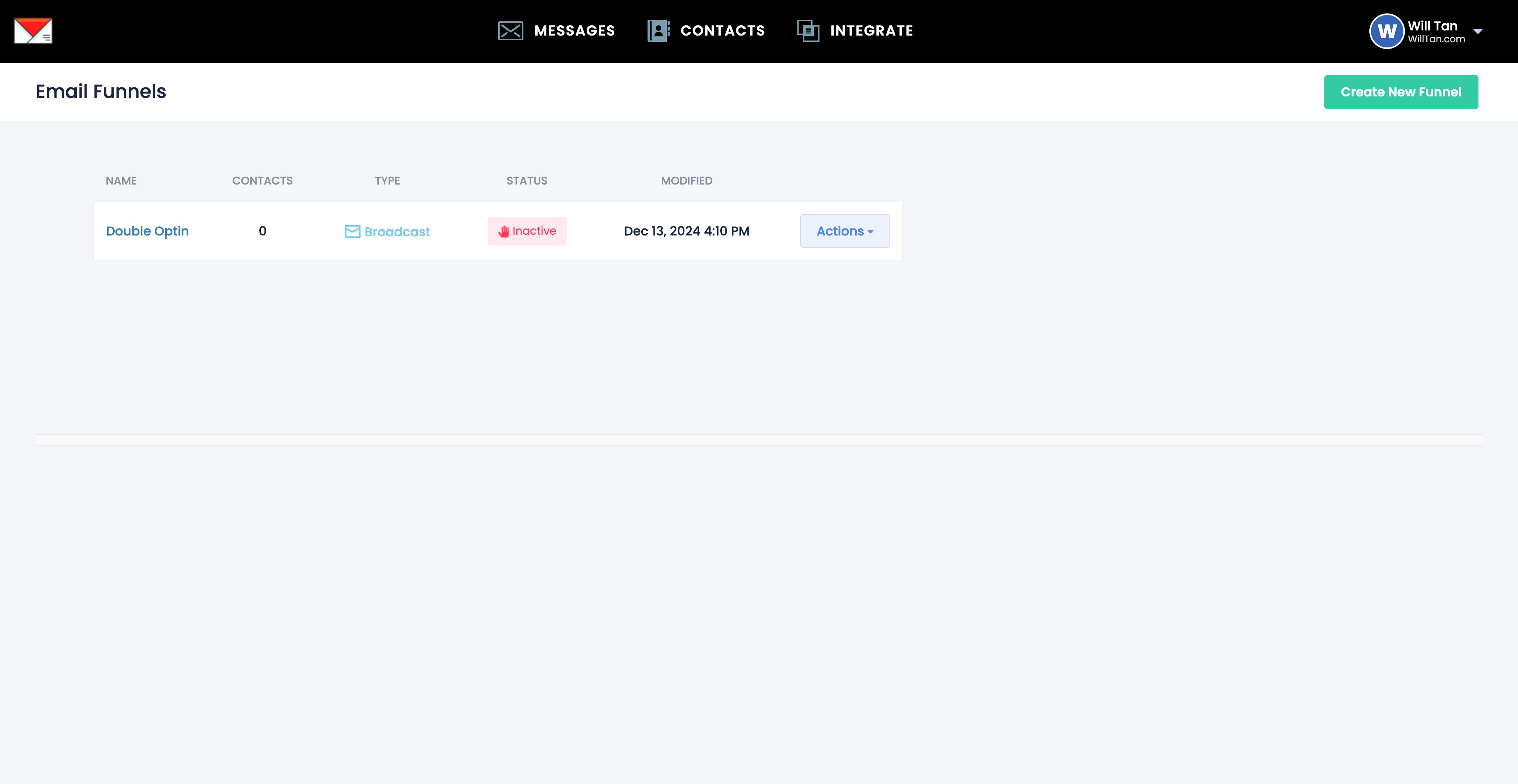
Click this icon
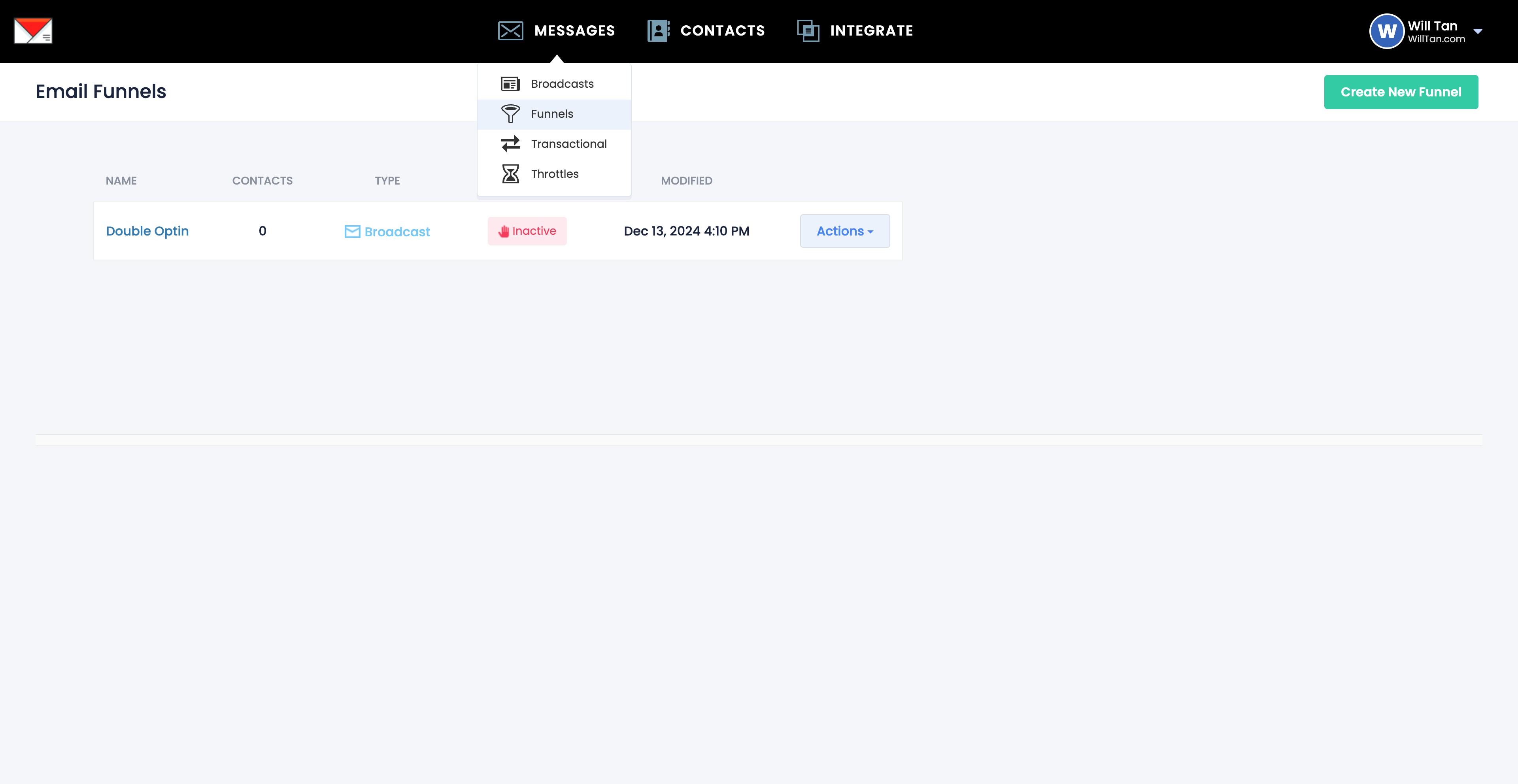
Click on "Create New Funnel"
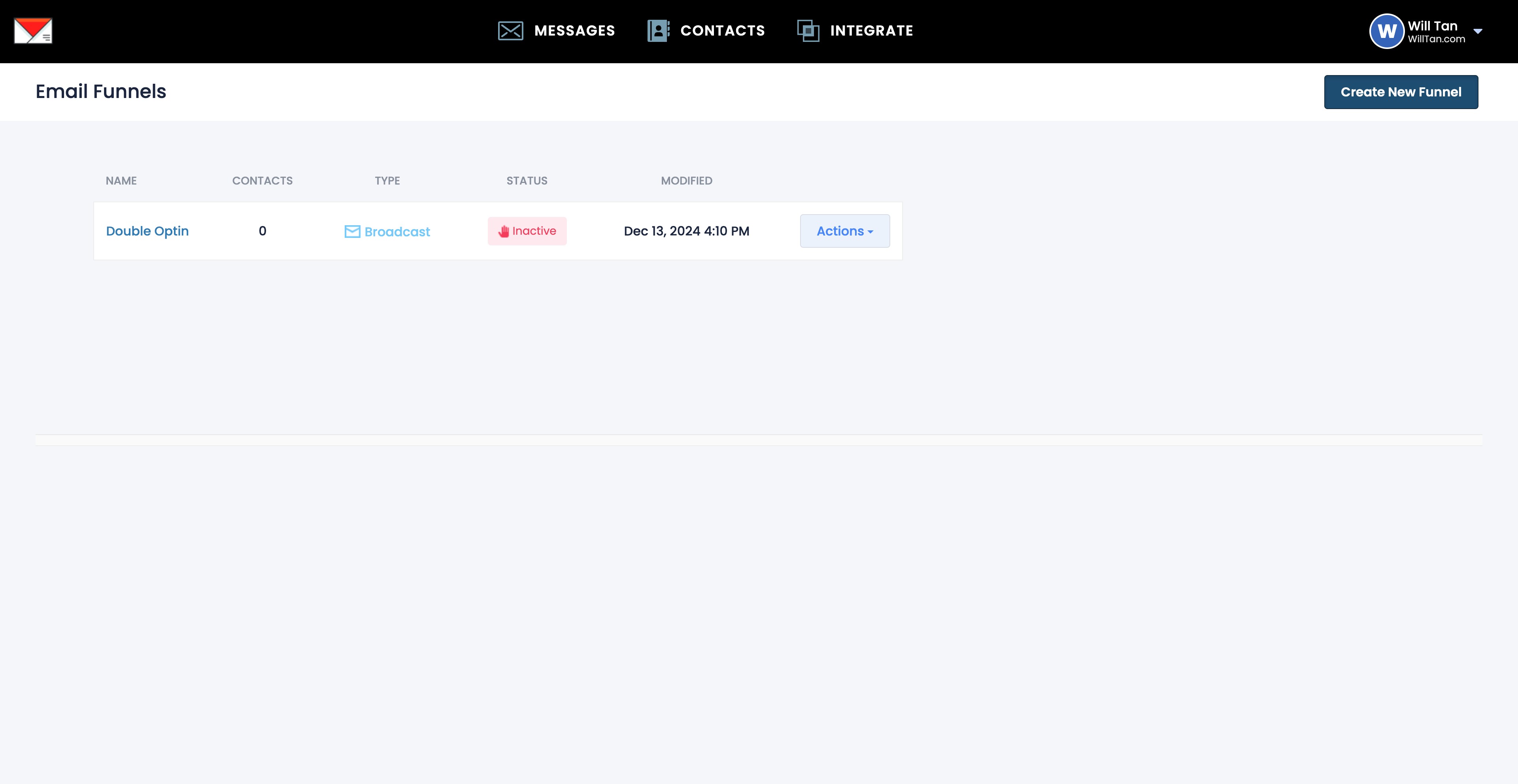
Click here
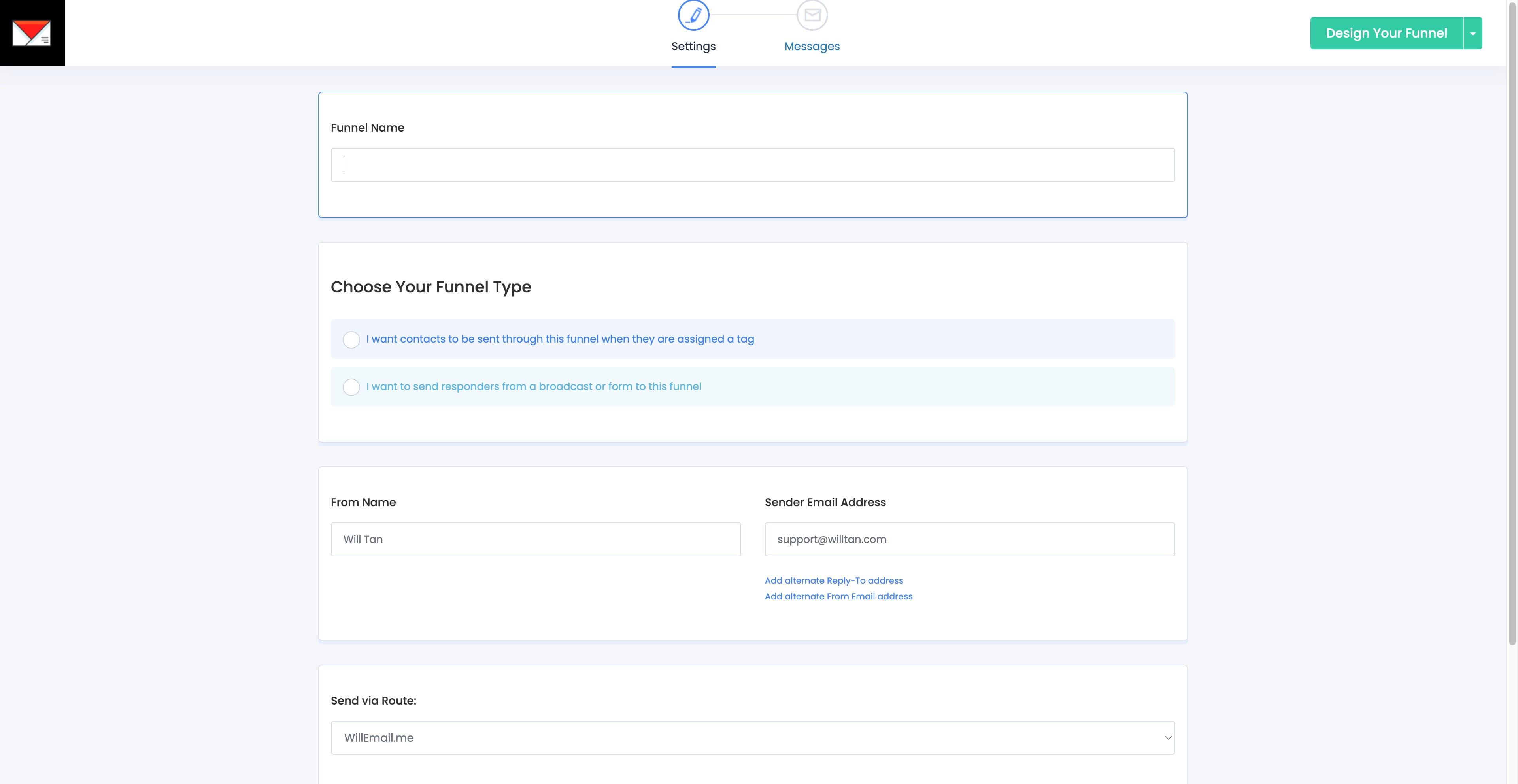
Click here
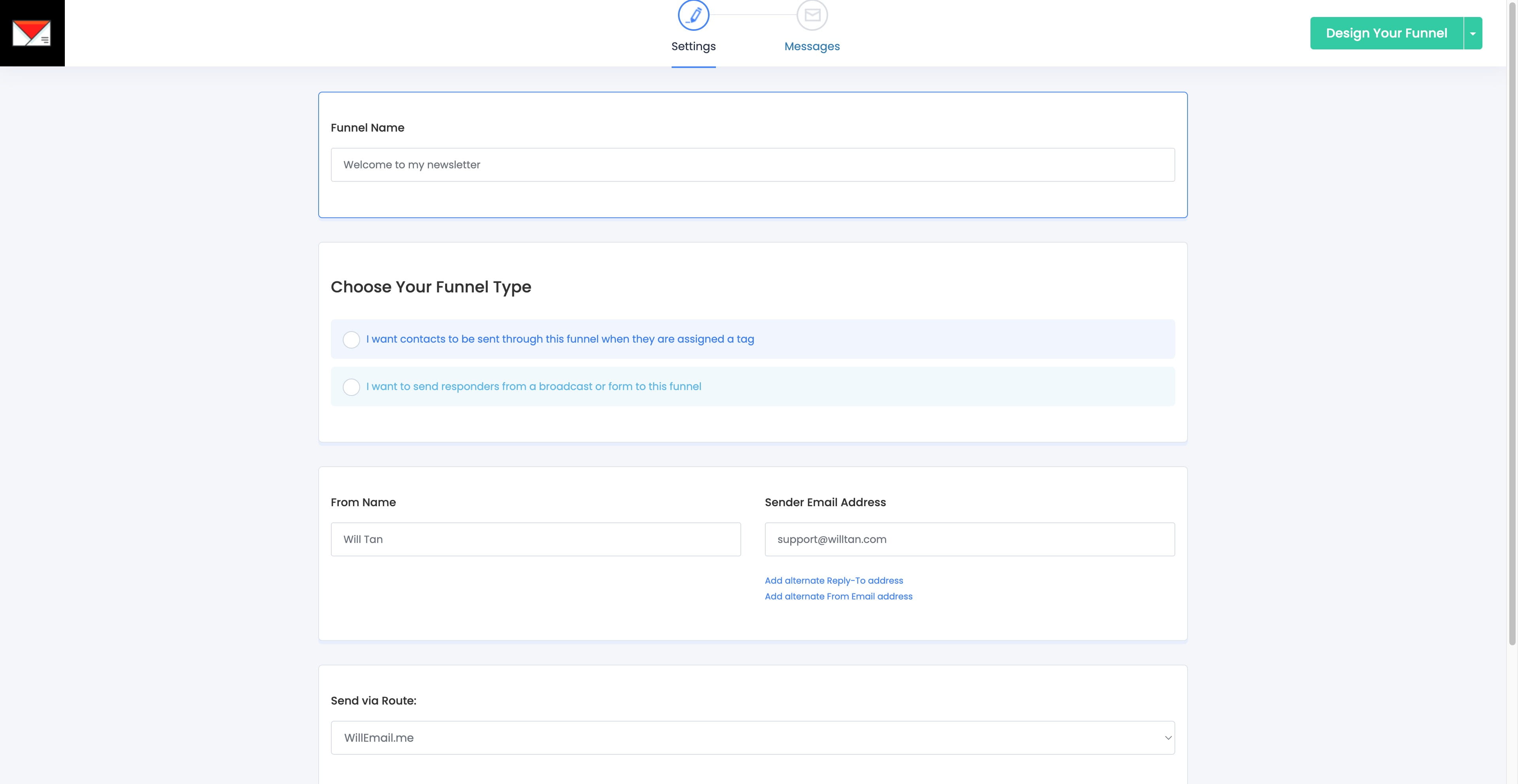
Click here
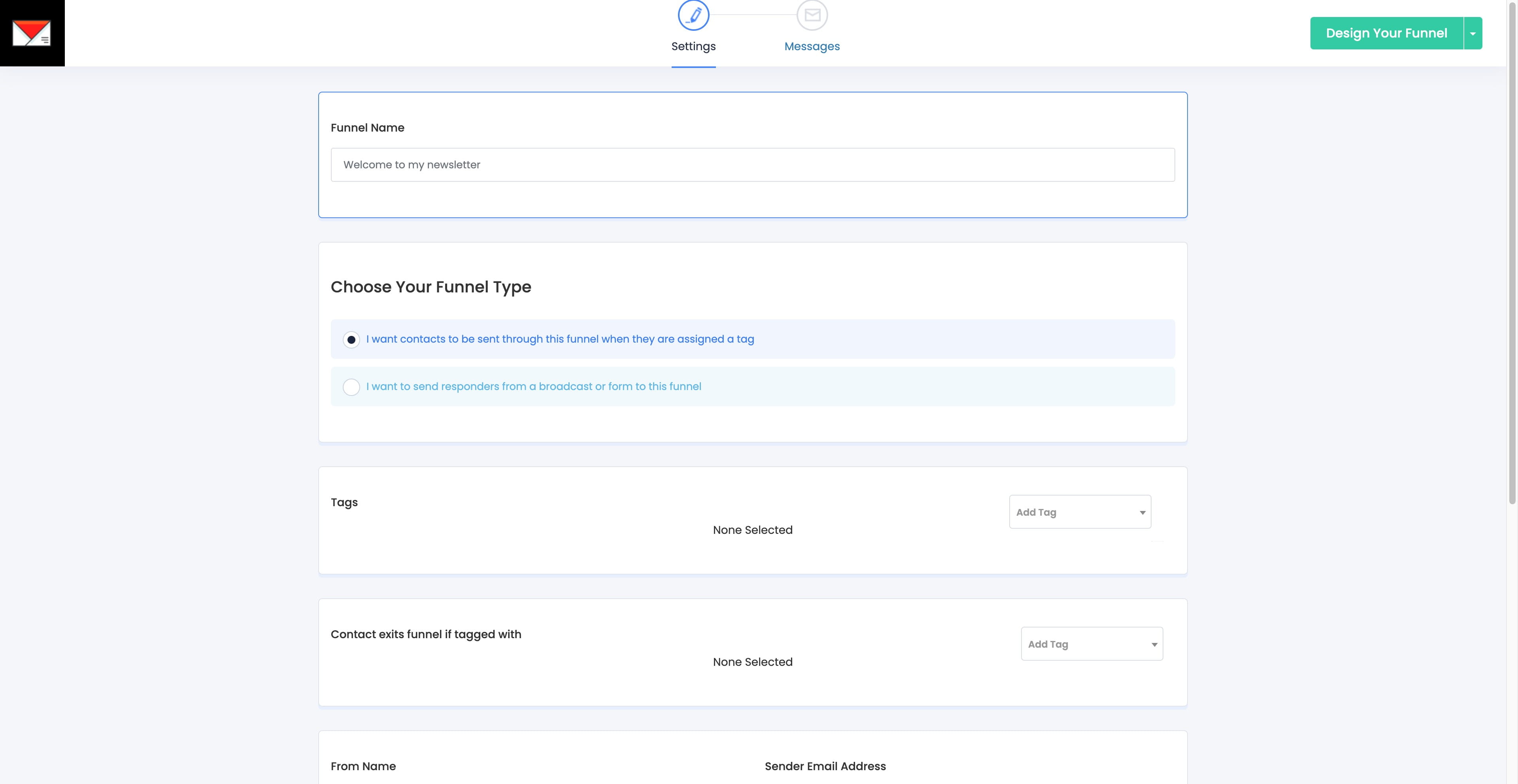
Click here
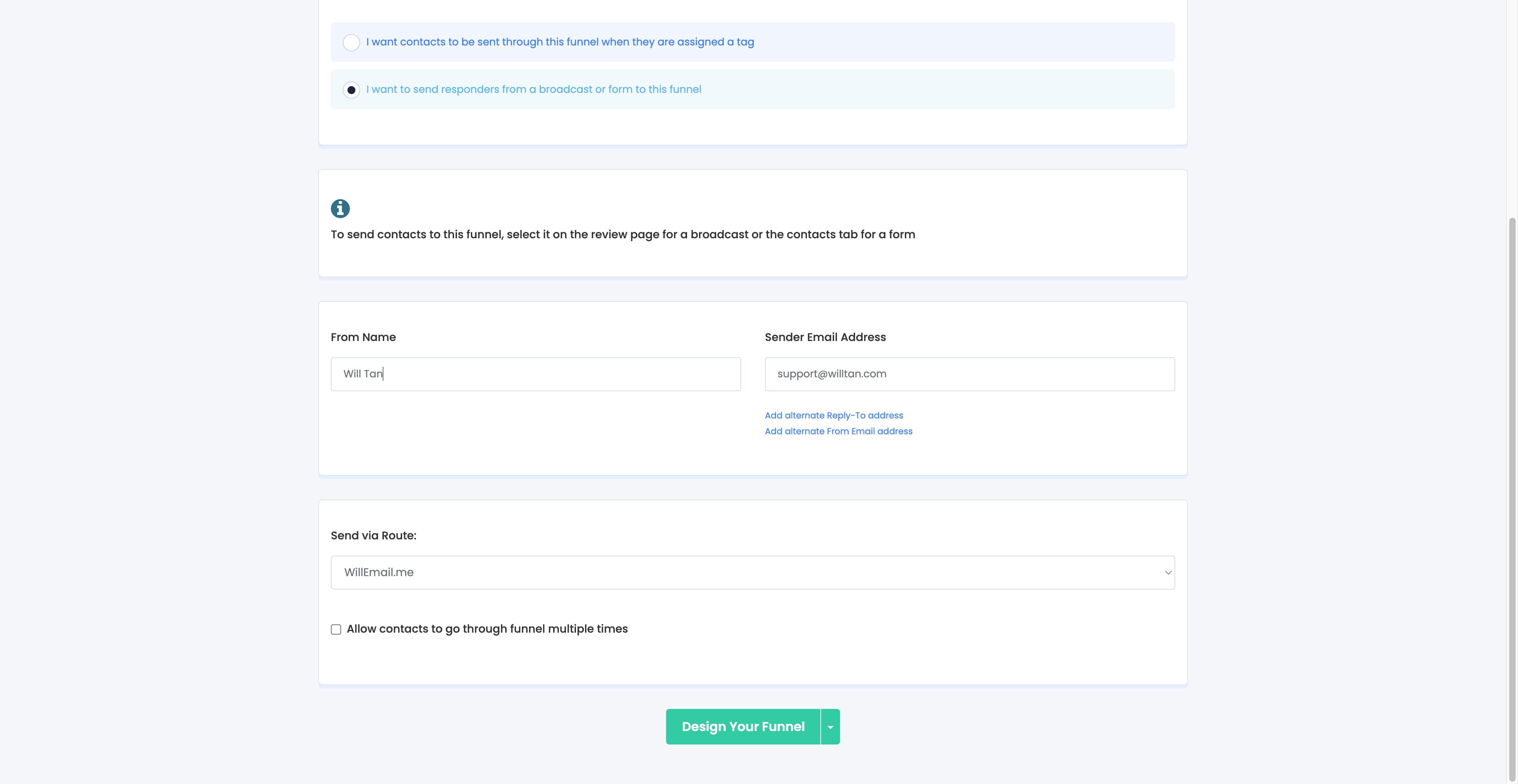
Click here
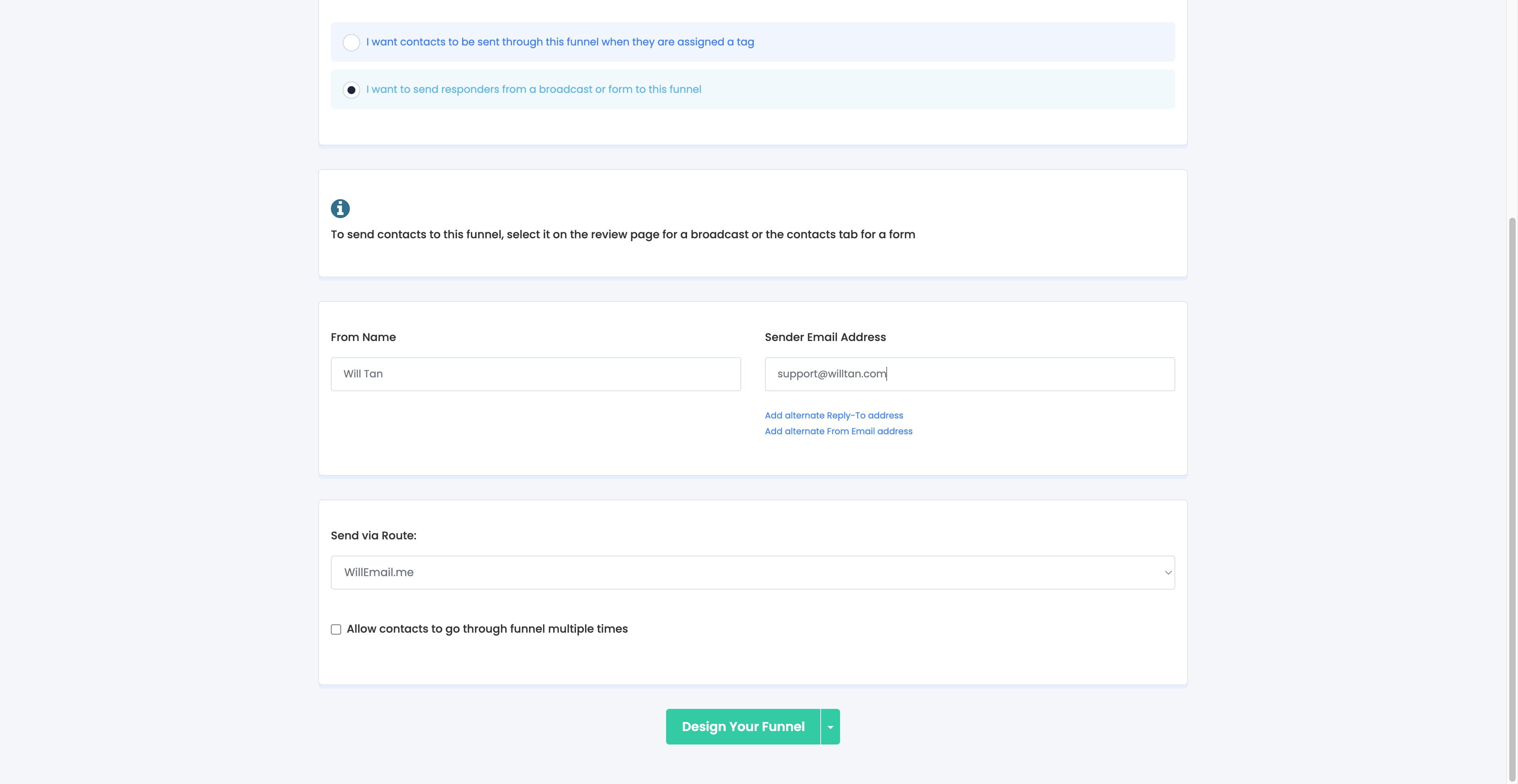
Click on "WillEmail.me"
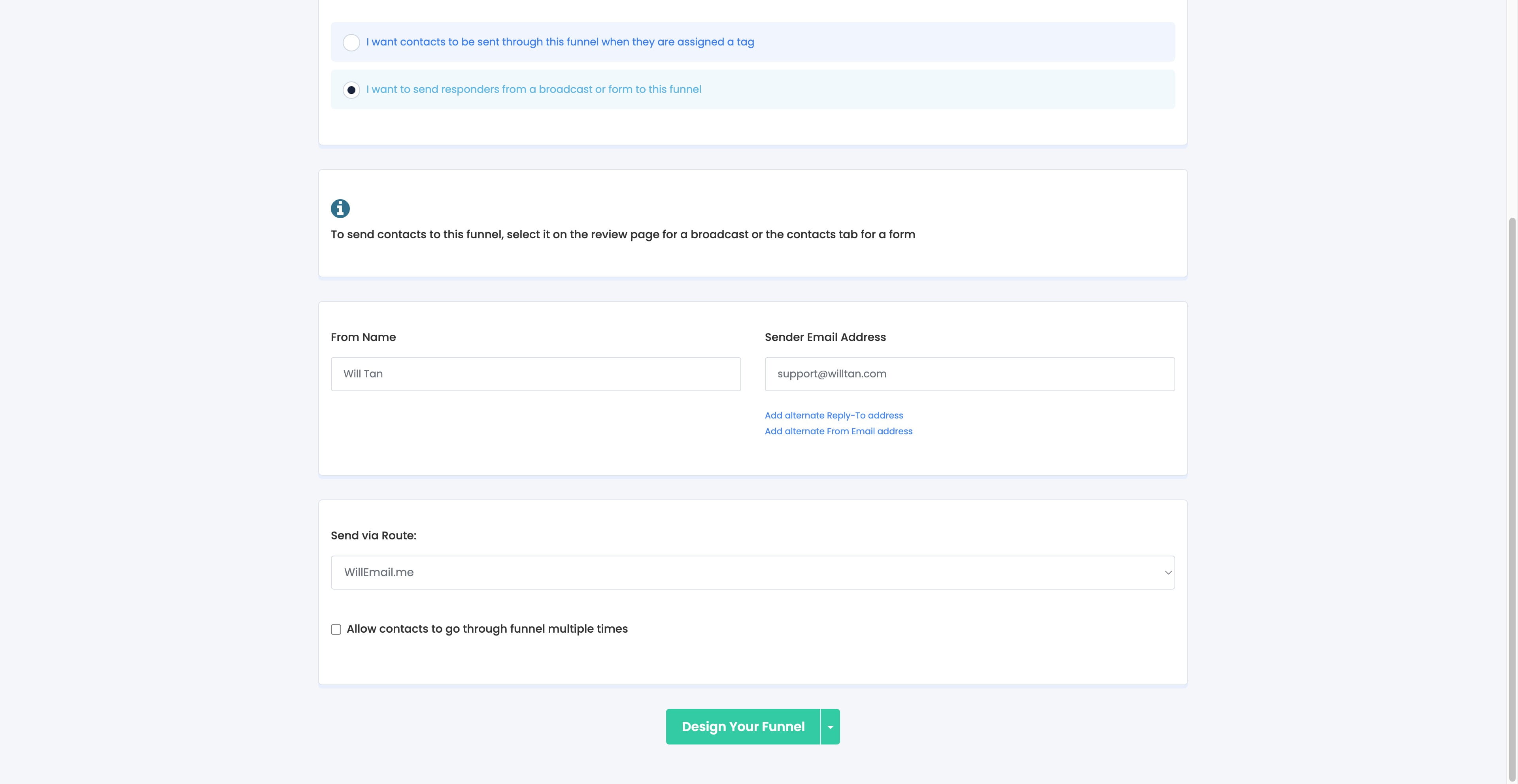
Click on "Design Your Funnel"
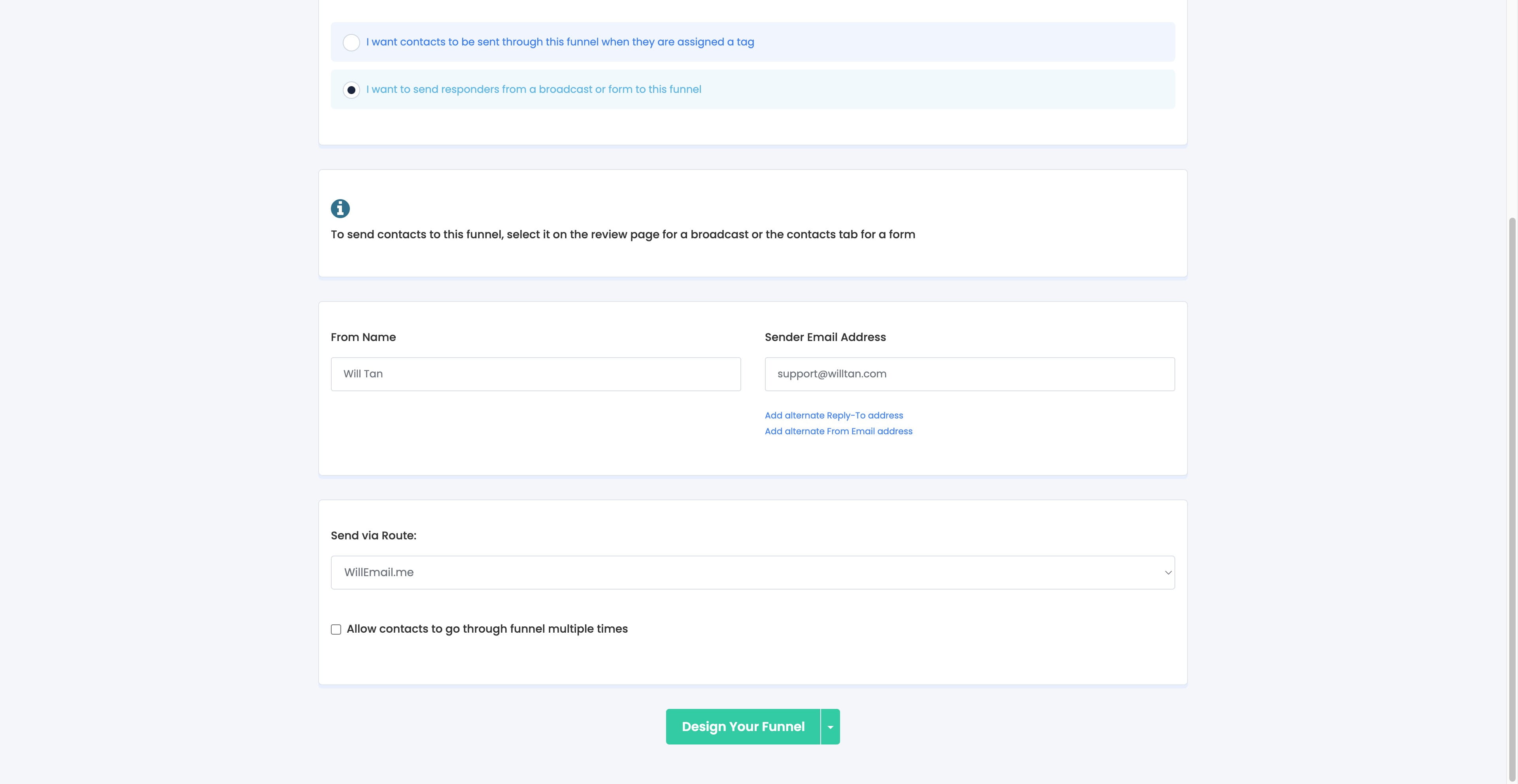
Click on "Back To School 2022"
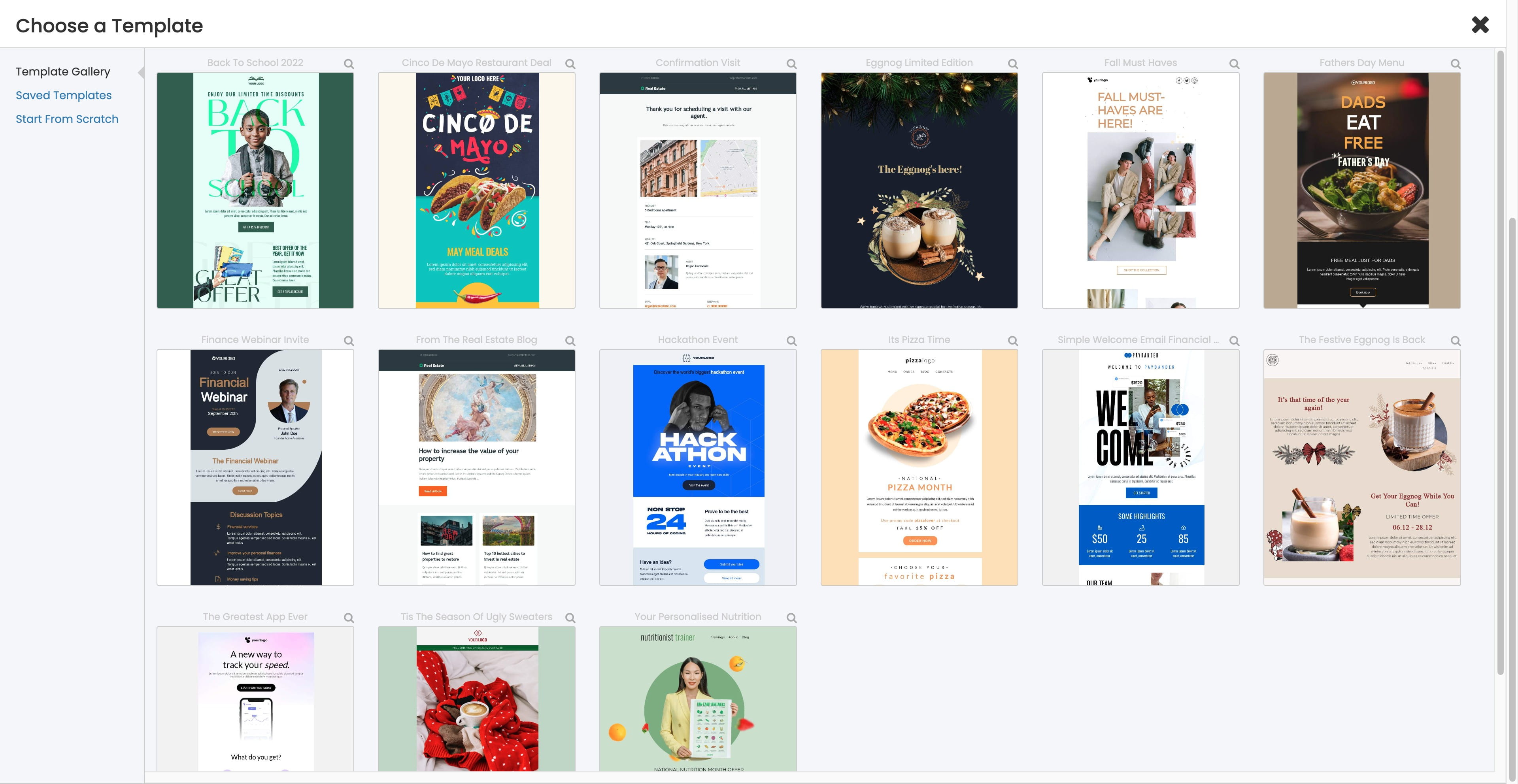
Click on "Start From Scratch"
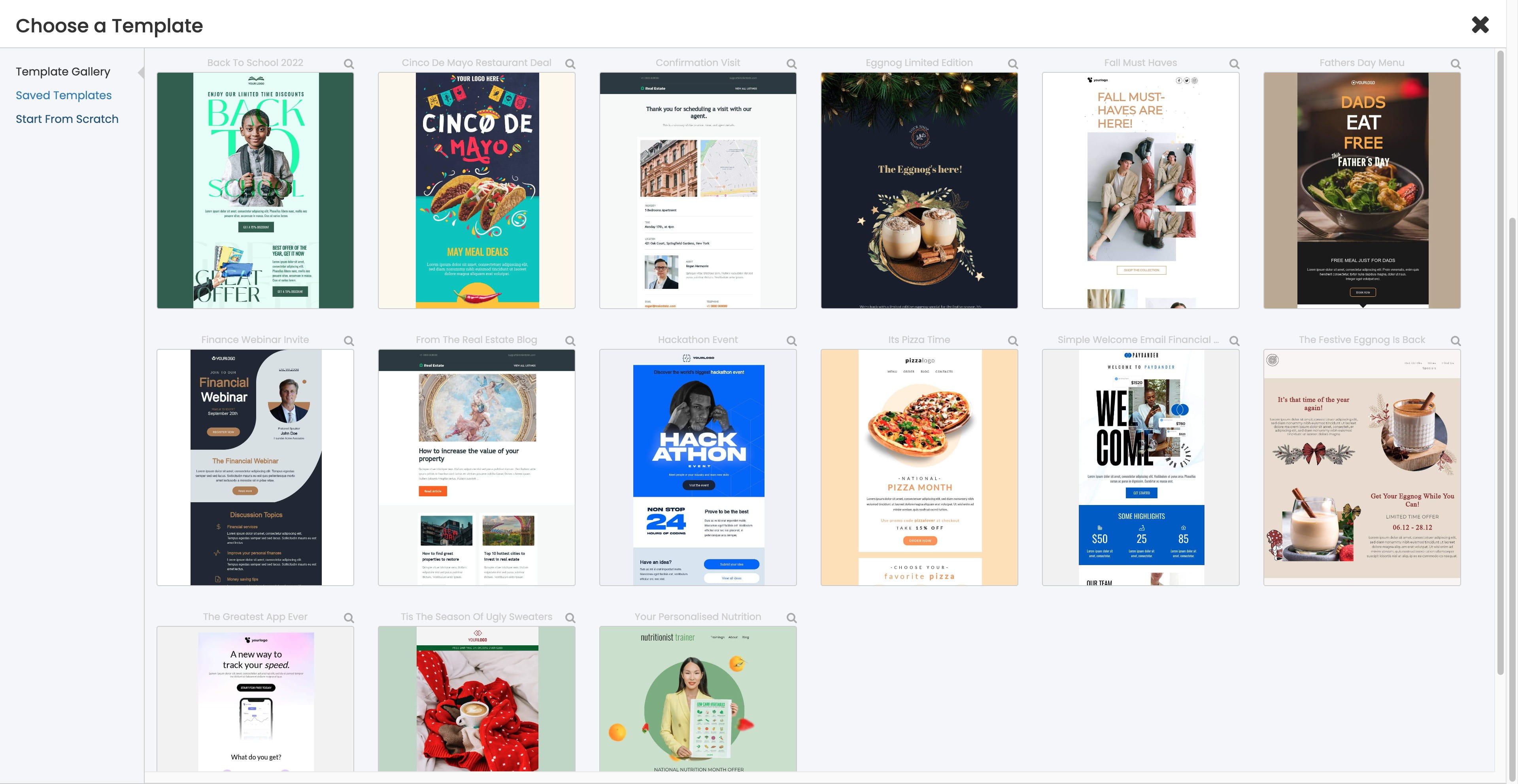
Click on "Yes"
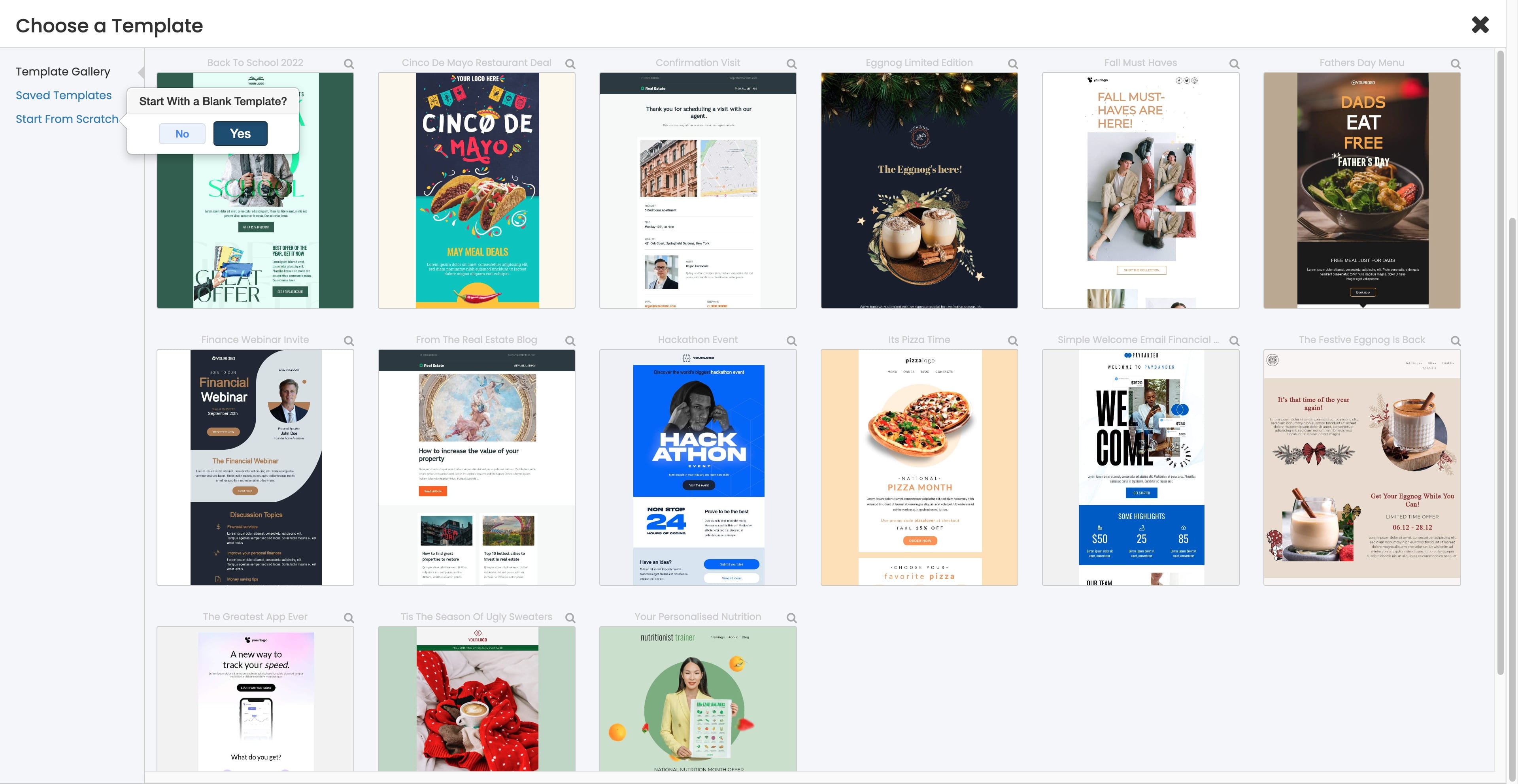
Click on "How soon do you want the first message sent when s"
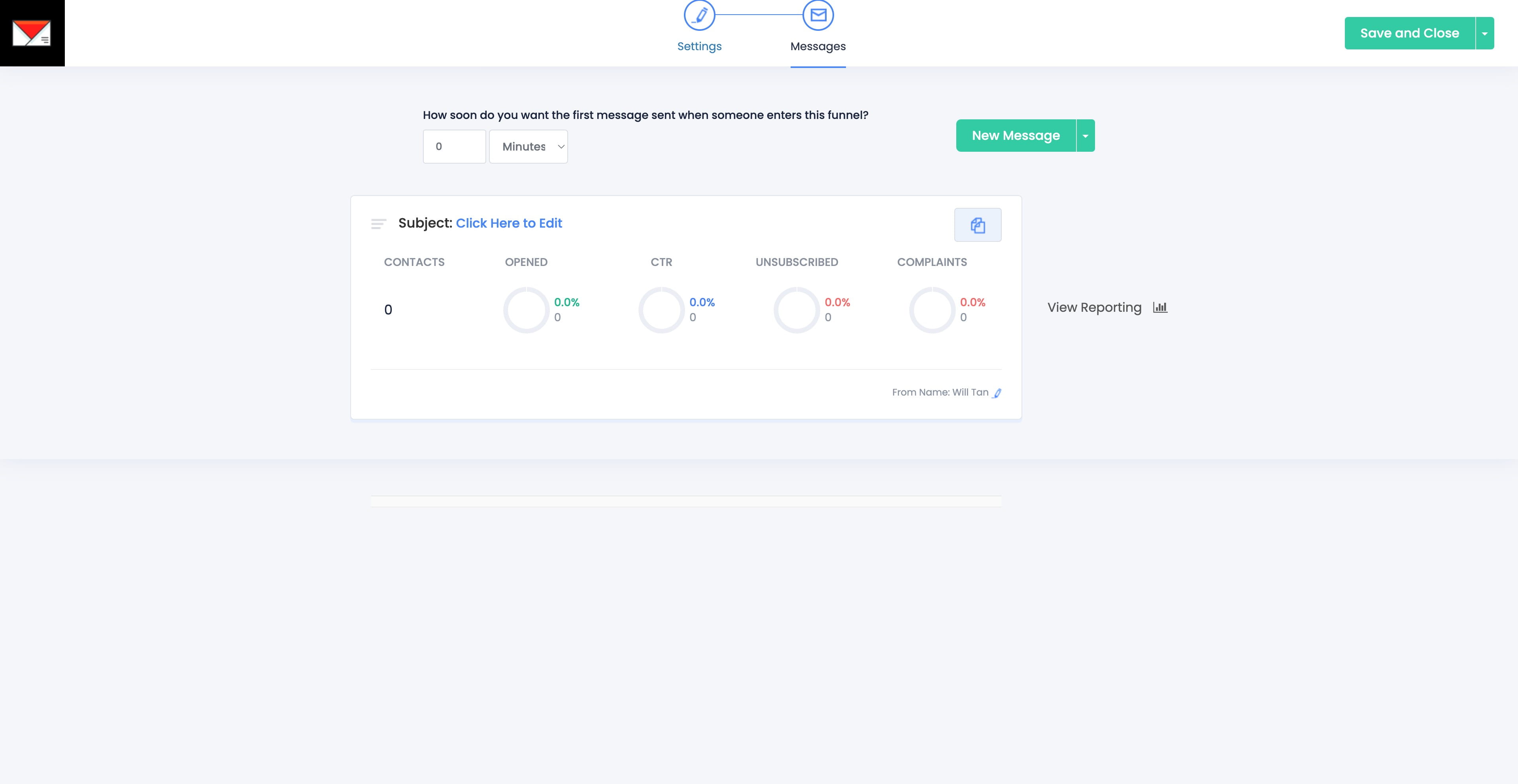
Click on "Click Here to Edit"
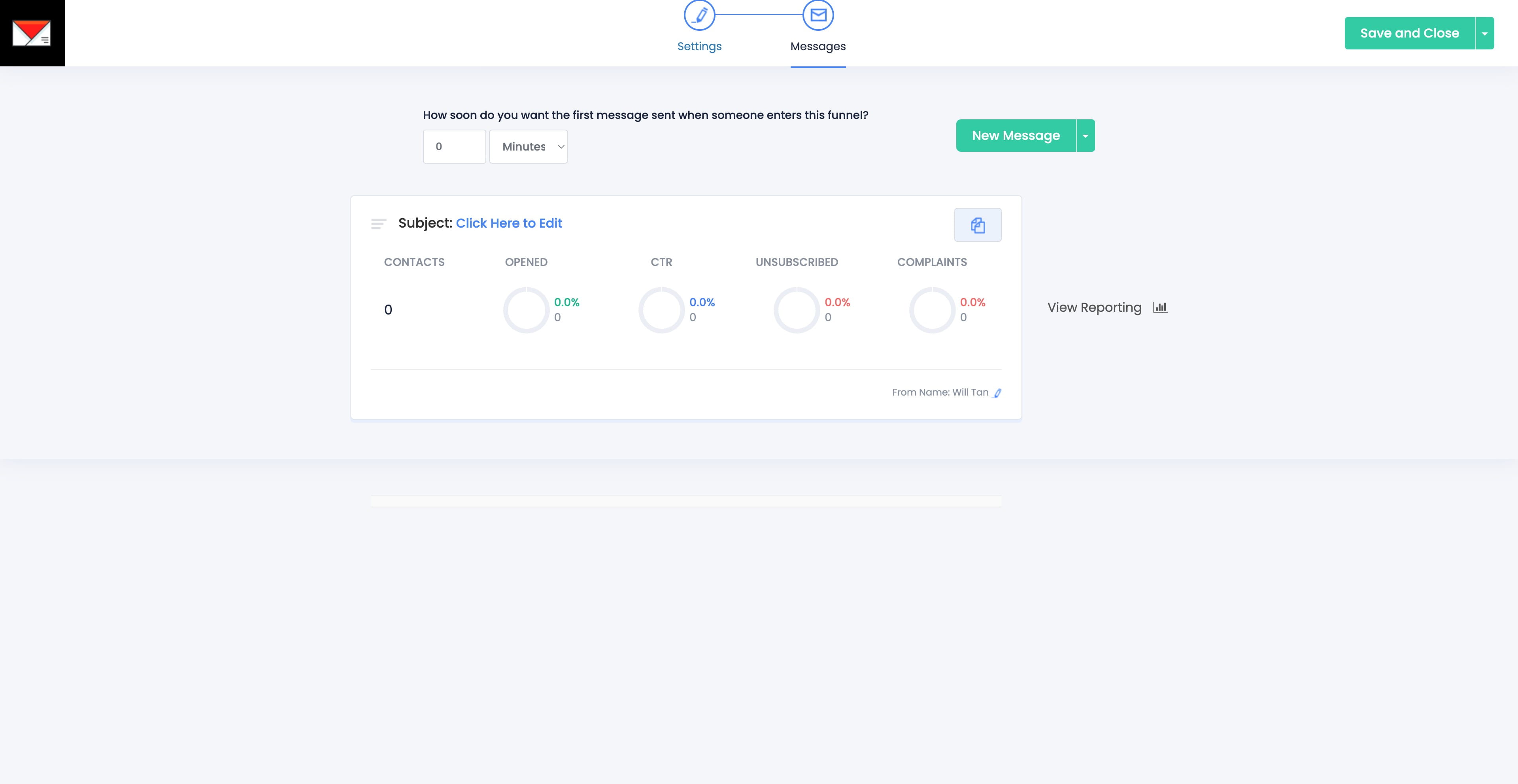
Click here
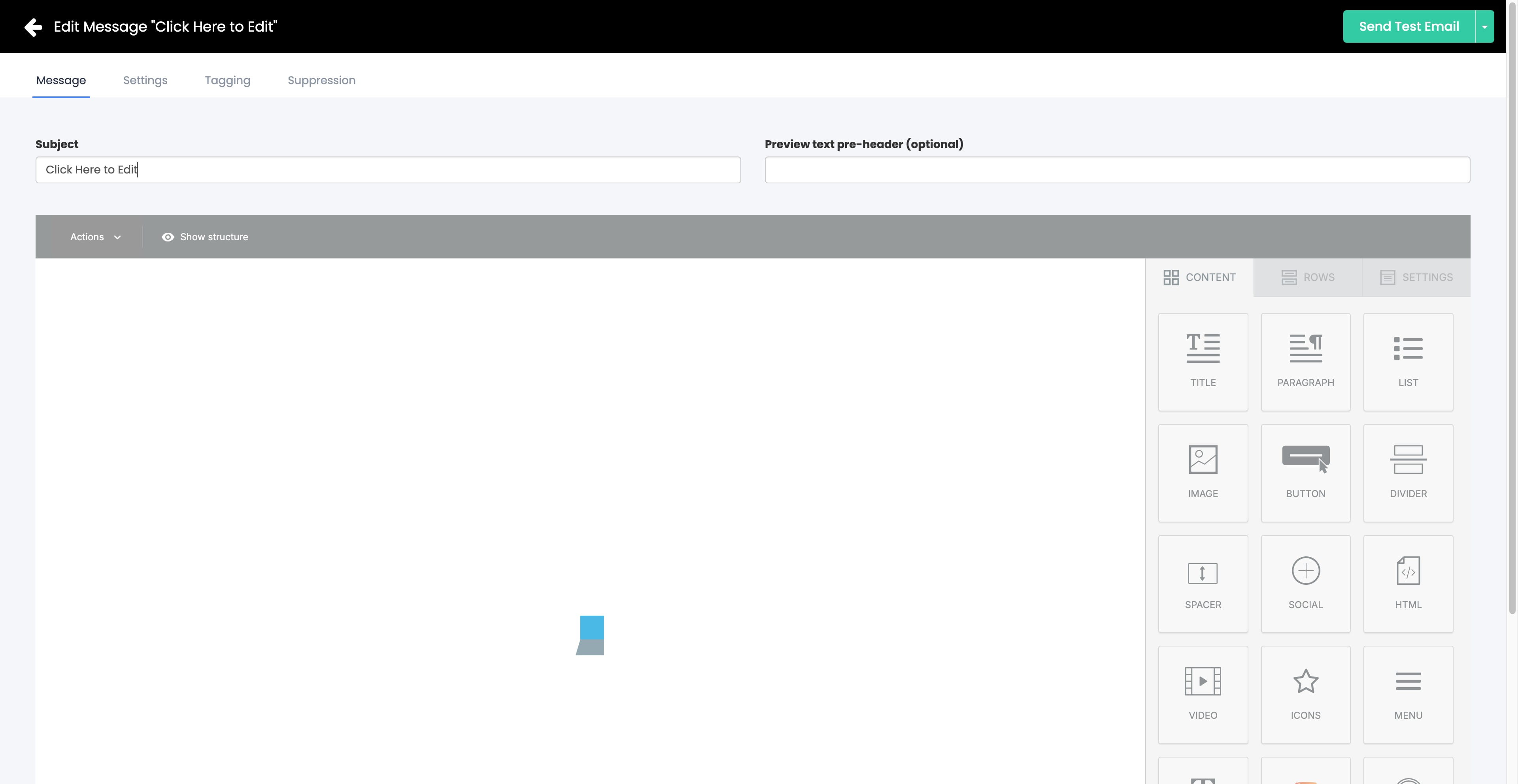
Click this icon
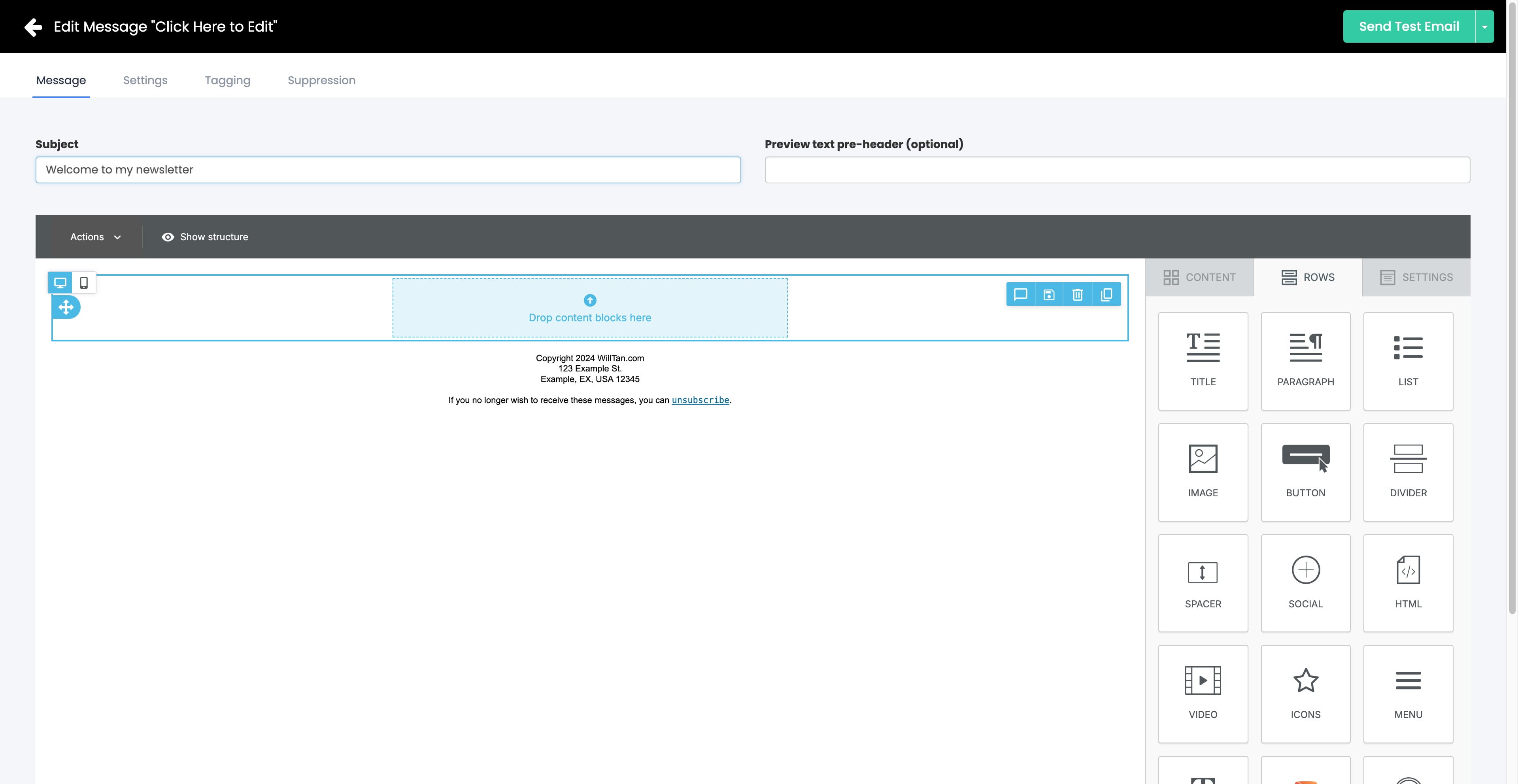
Click on "Send Test Email"
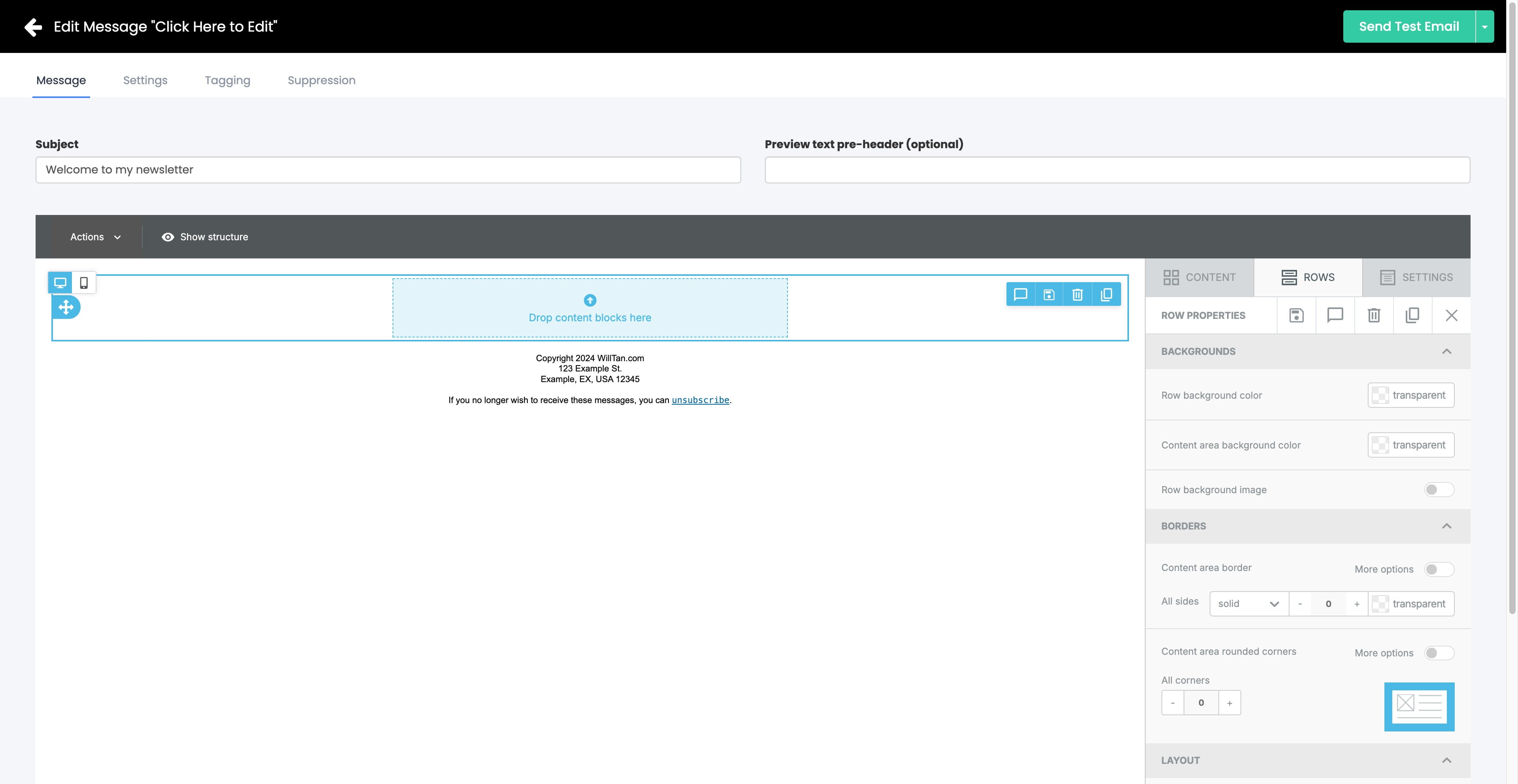
Click on "Send"
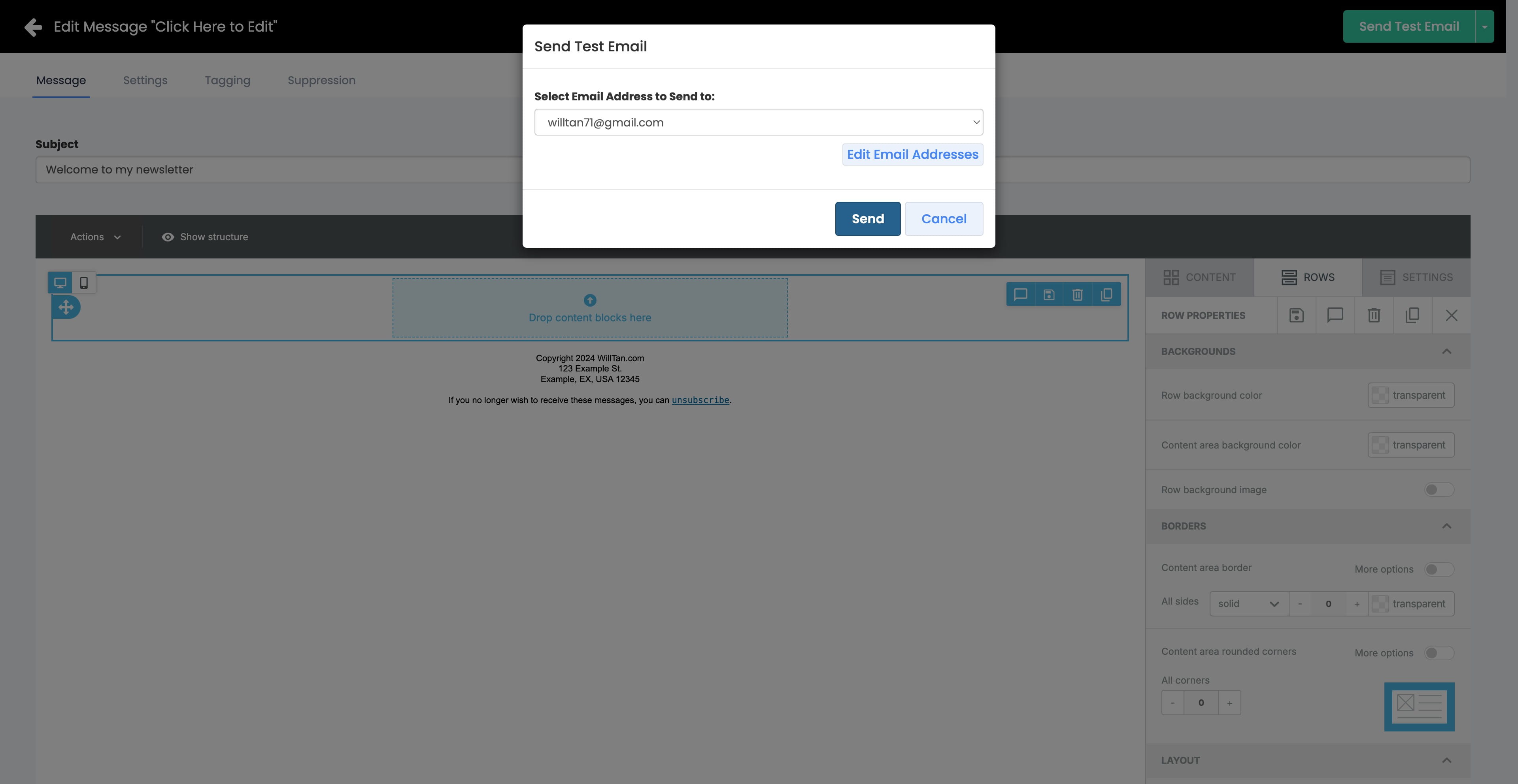
Click on "Test email submitted"
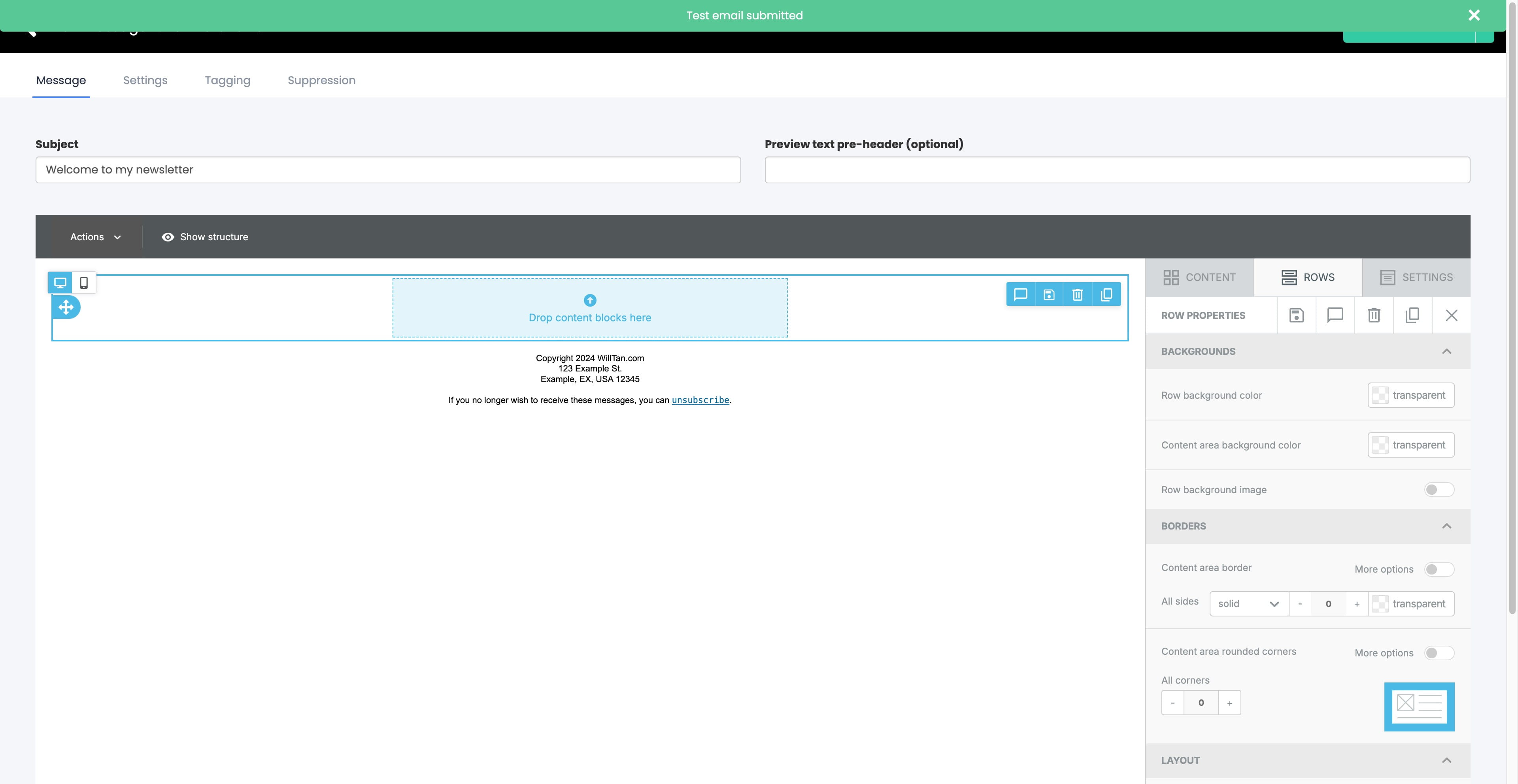
Click on "Save and Exit"
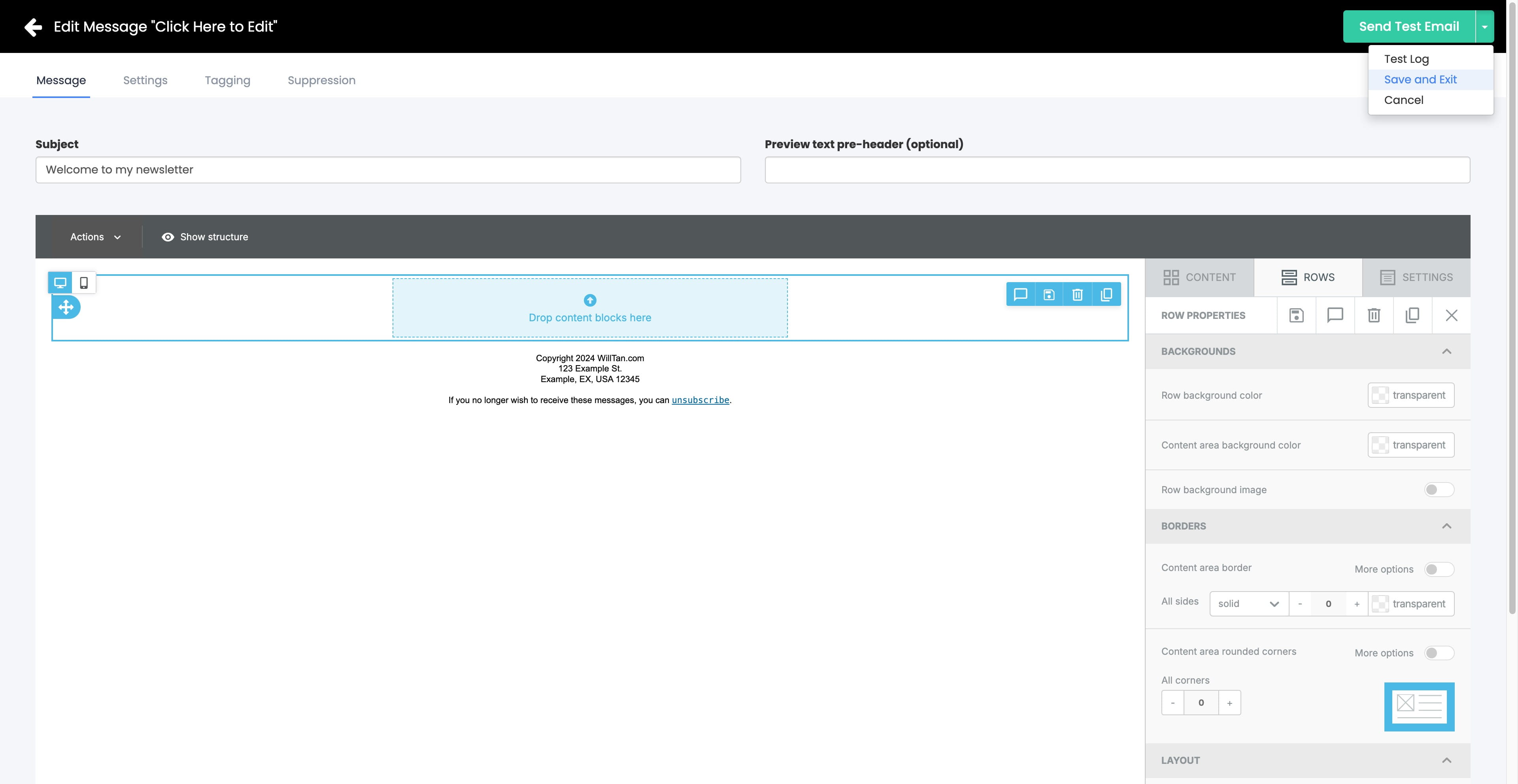
Click on "New Message"
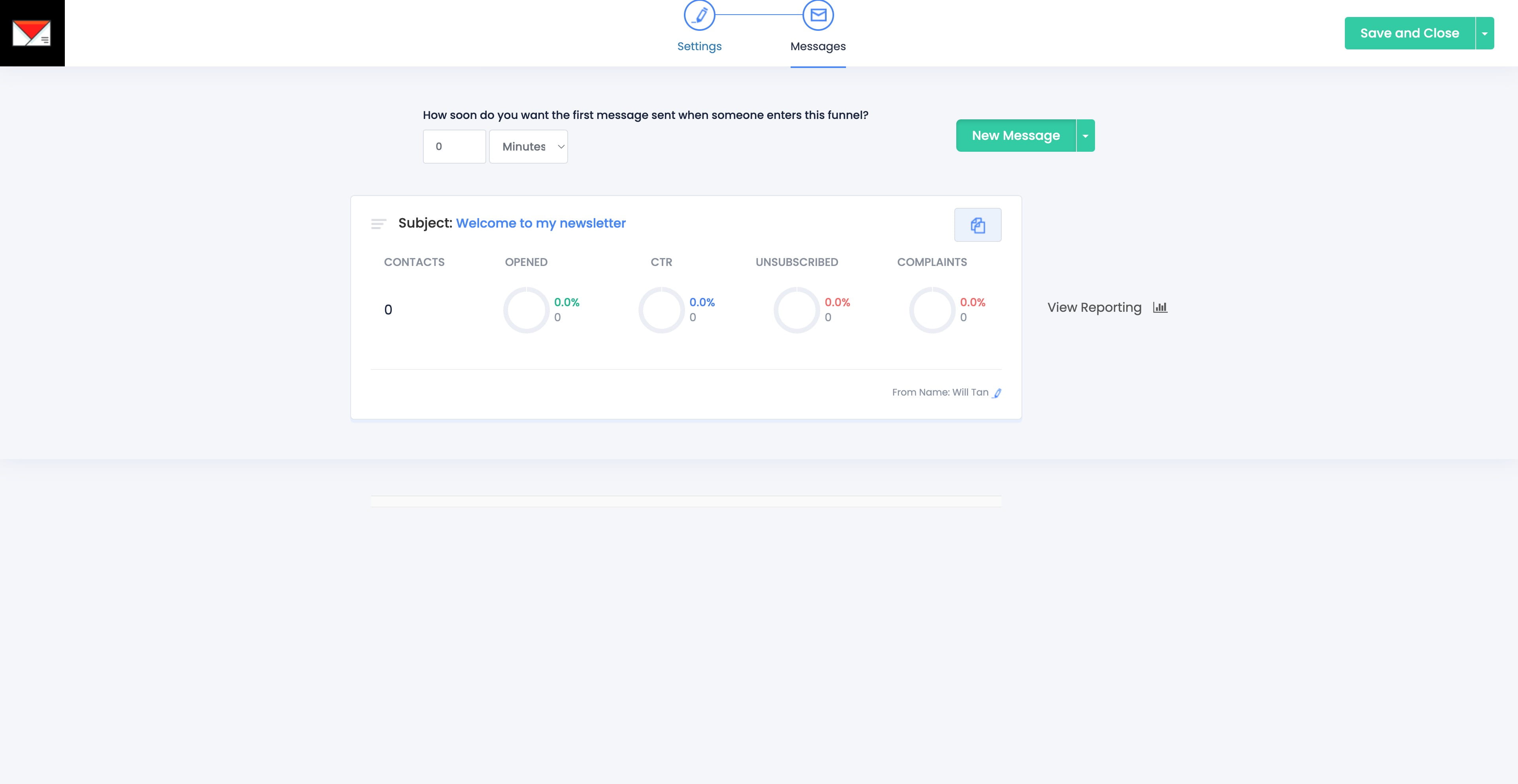
Click here
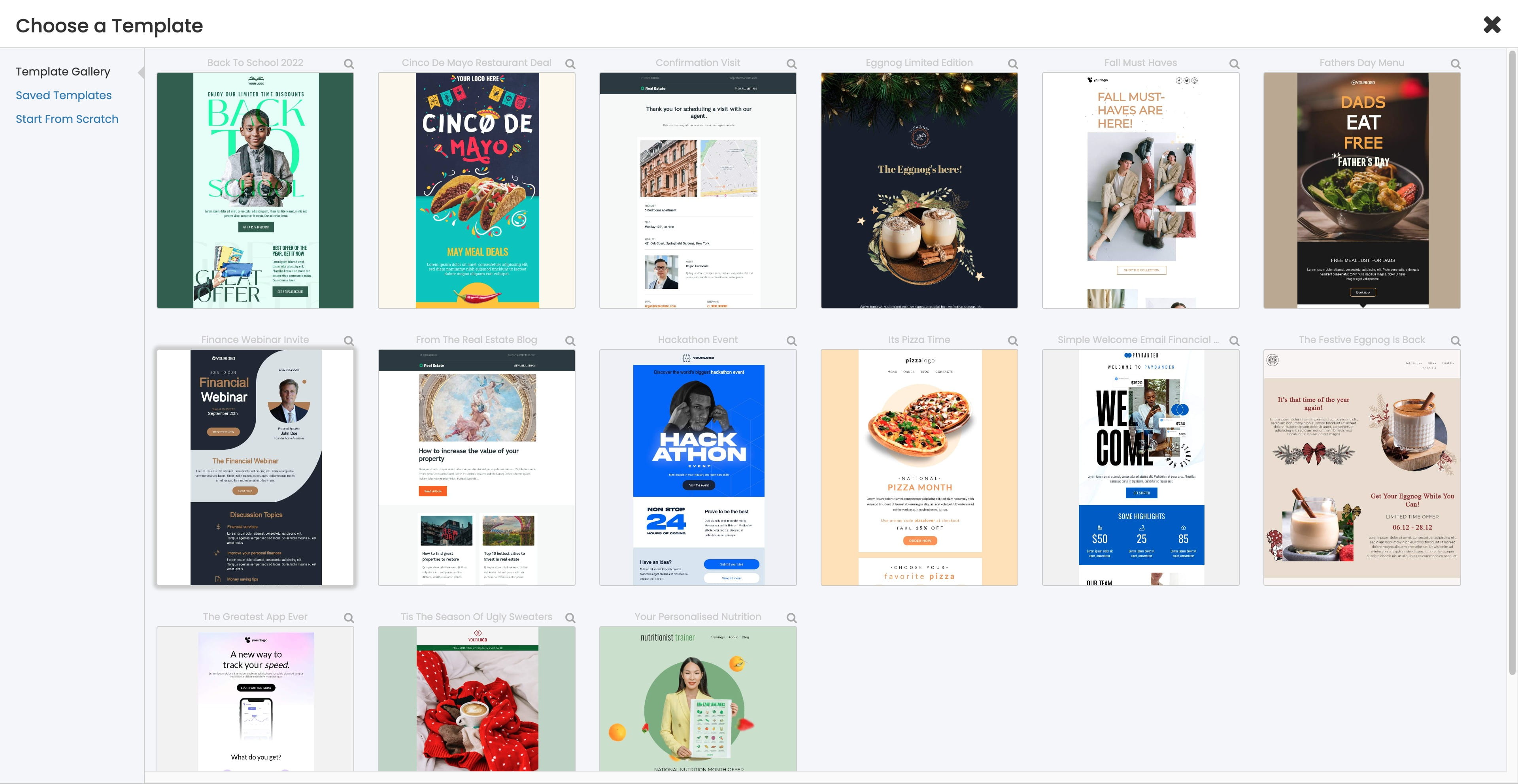
Click on "Yes"
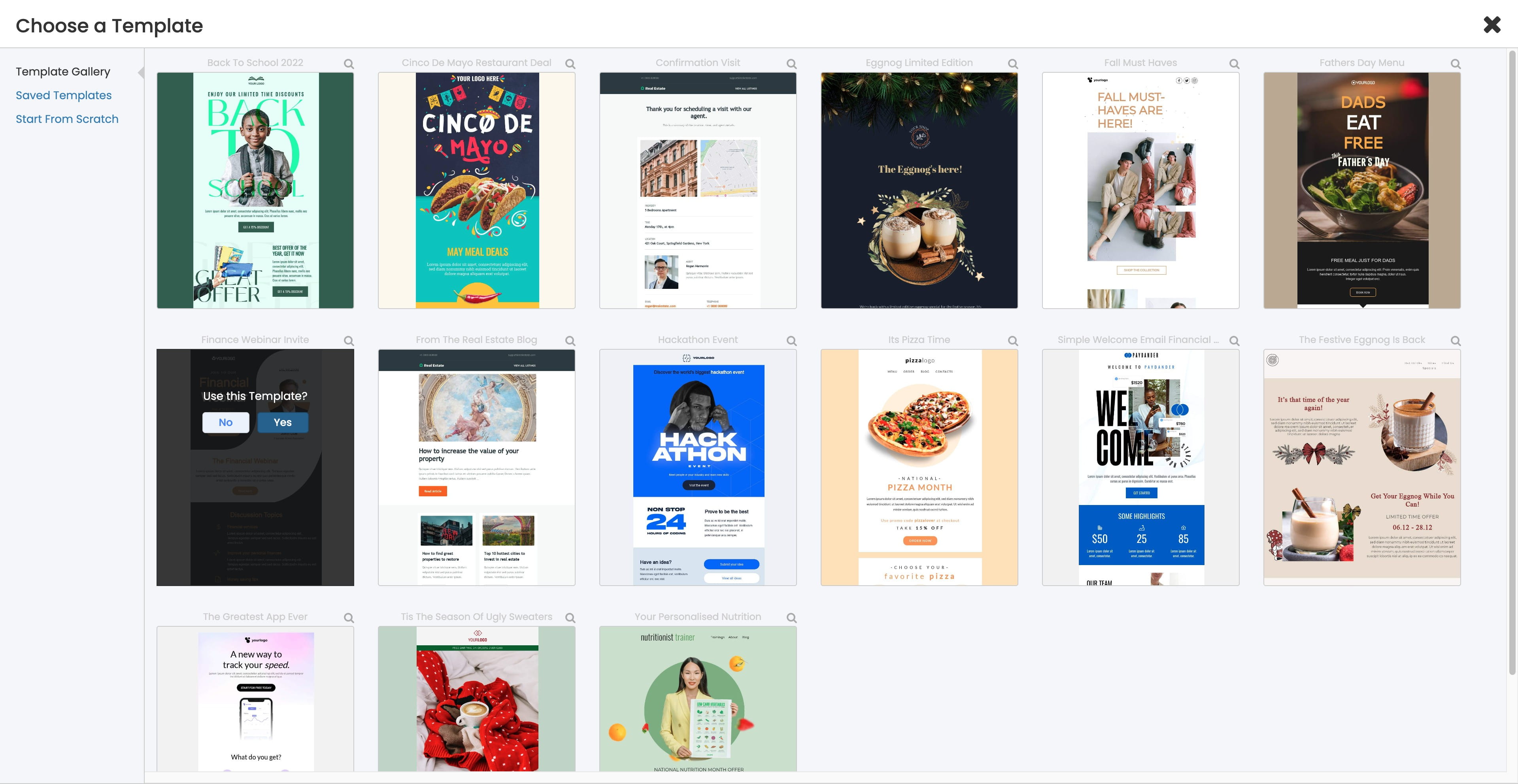
Click here
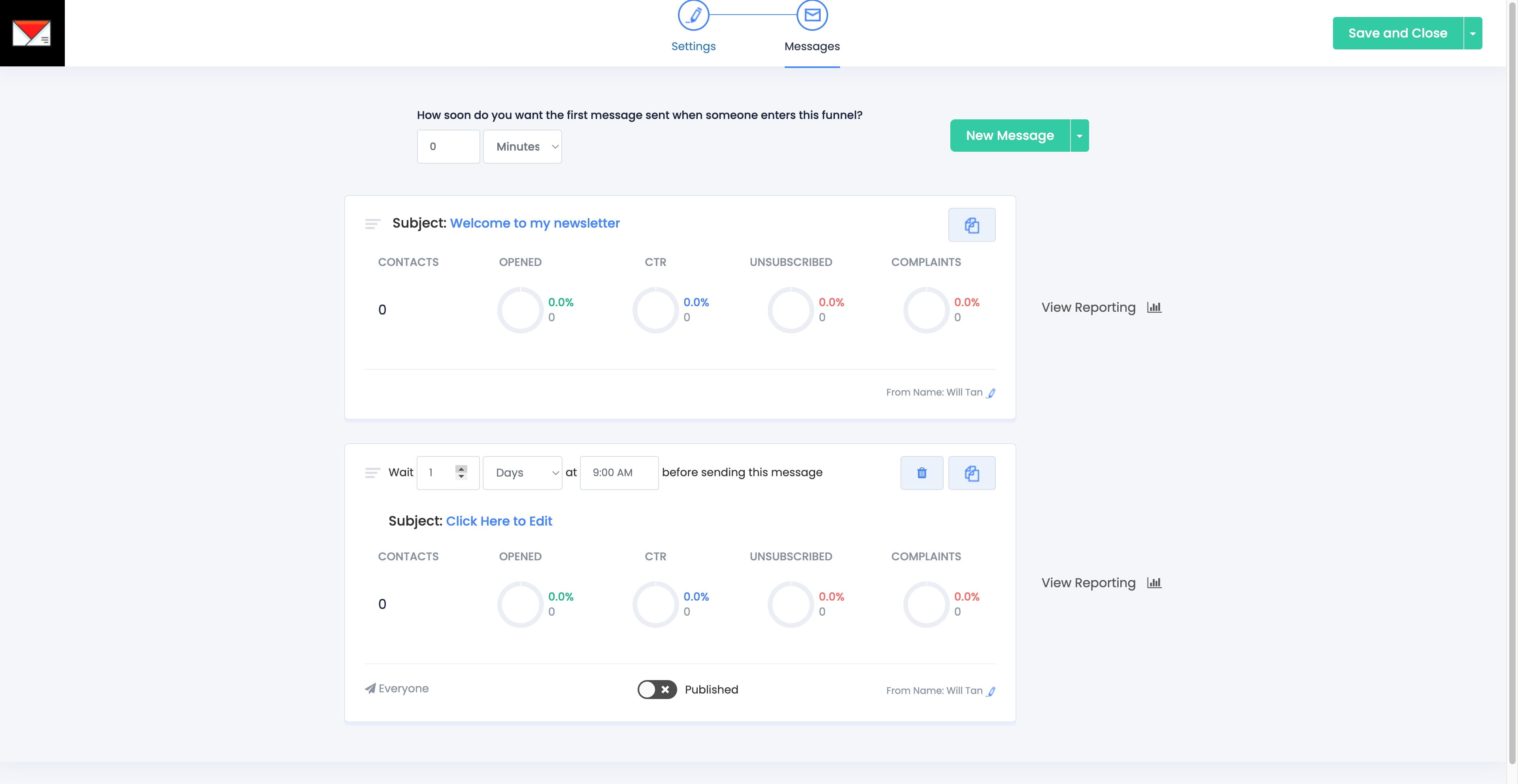
Click this icon
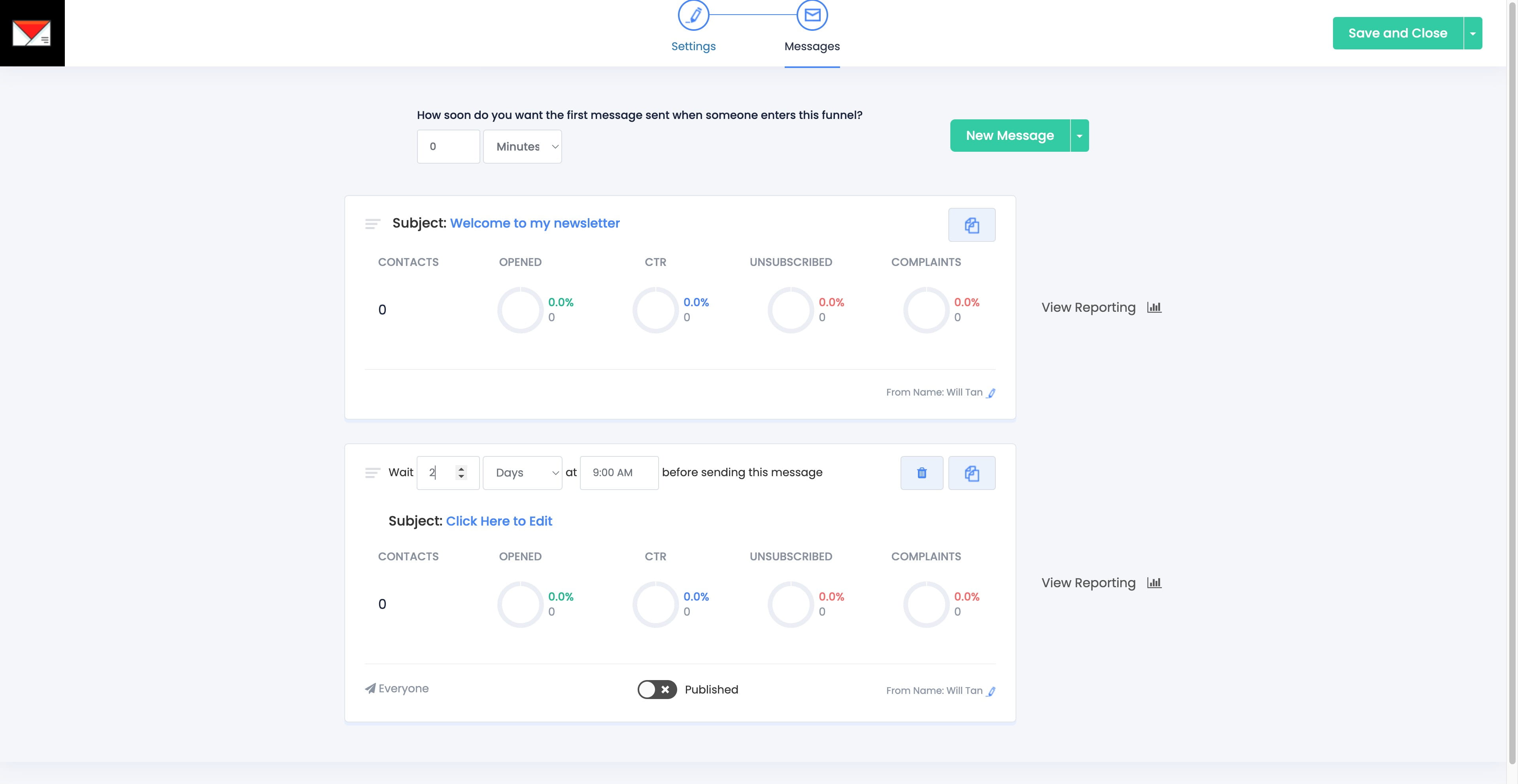
Click this icon
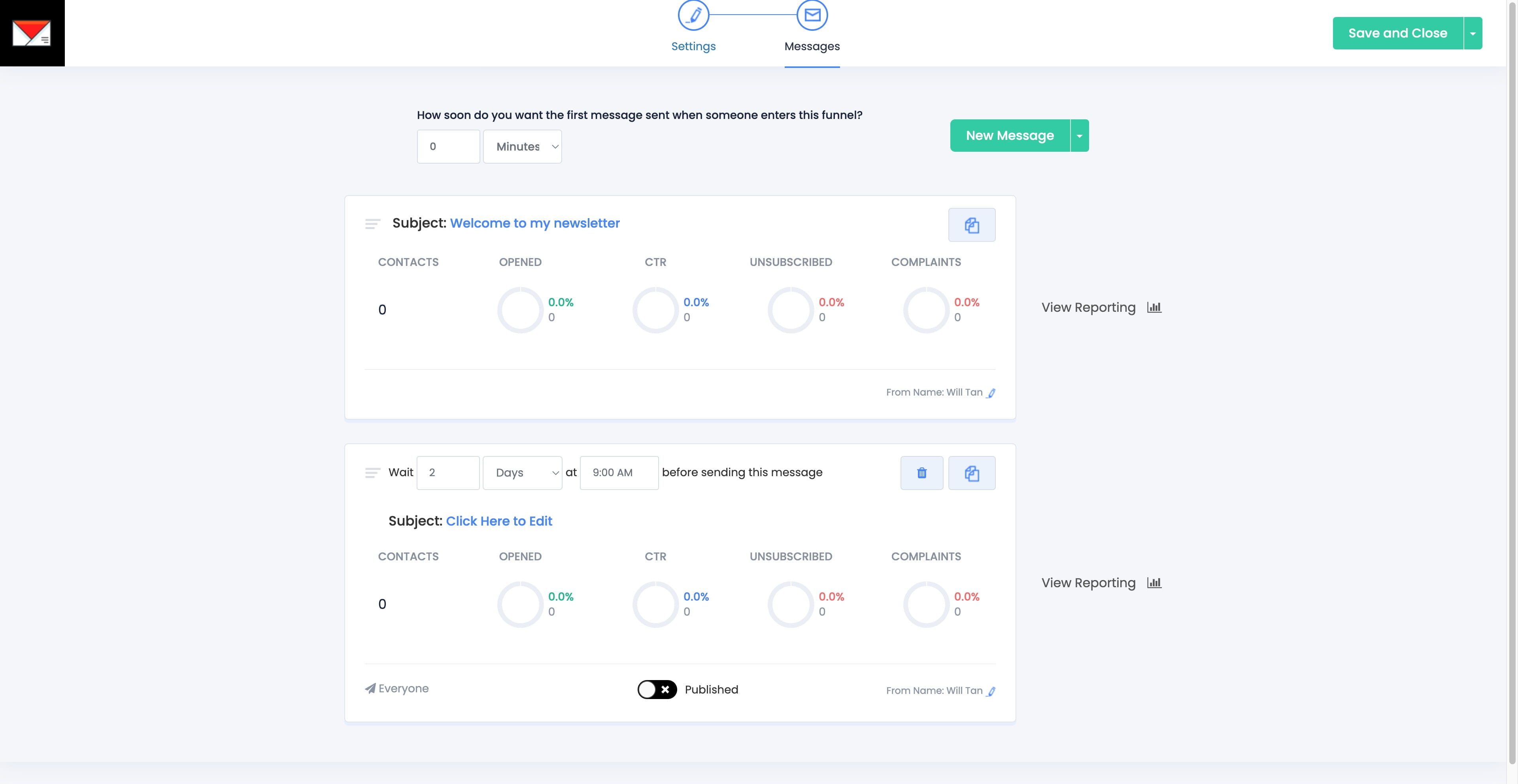
Click on "New Message"
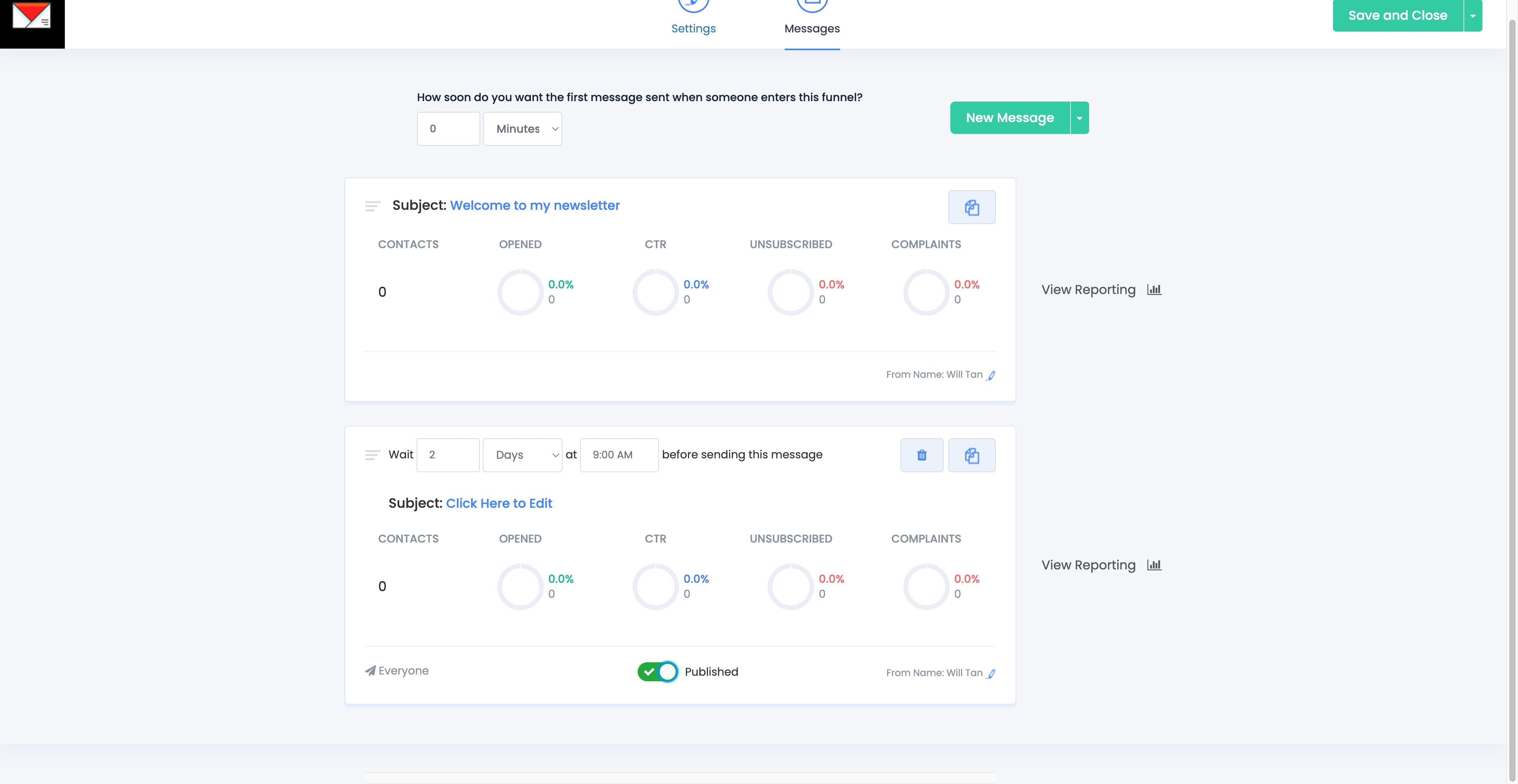
Click here
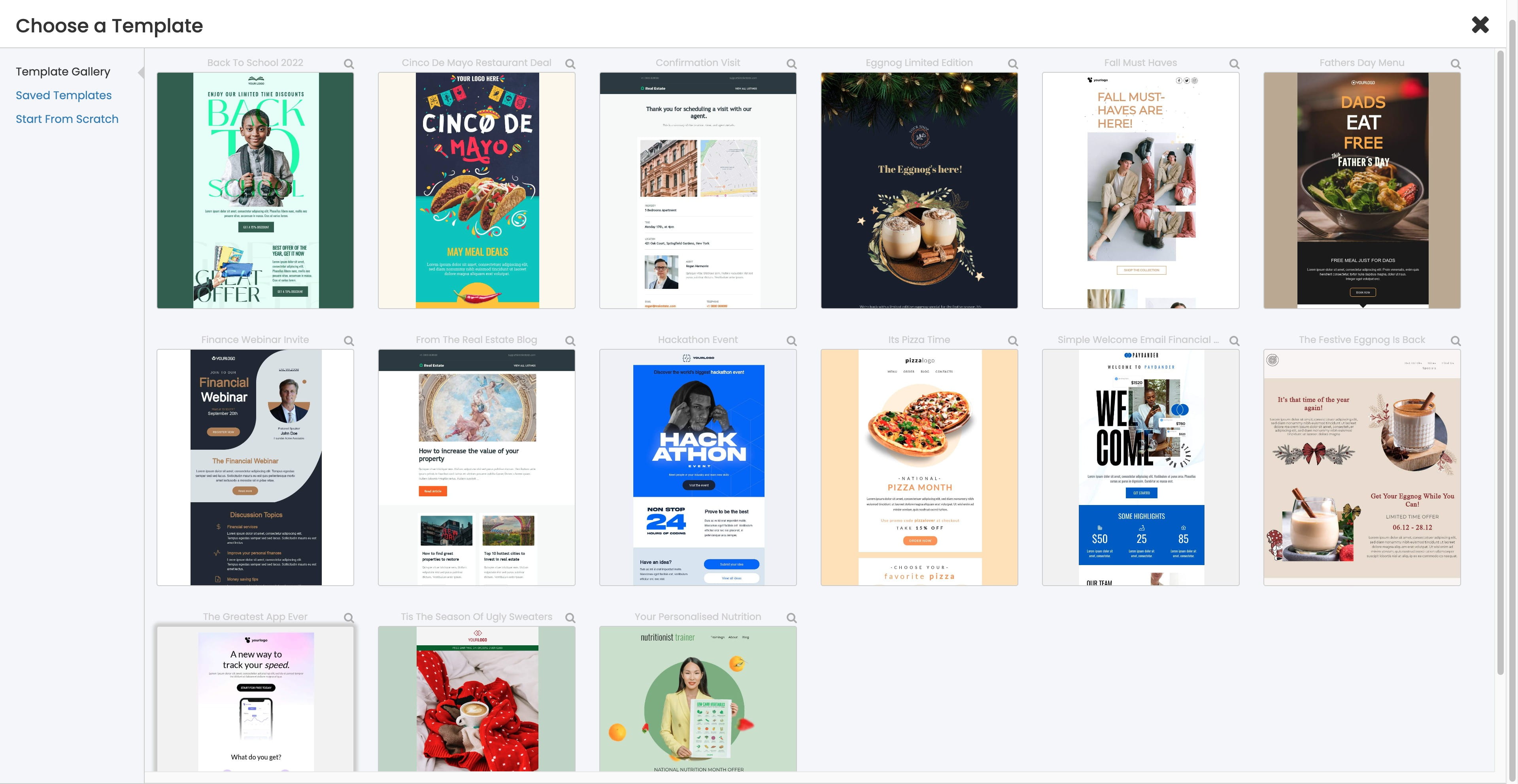
Click on "Yes"
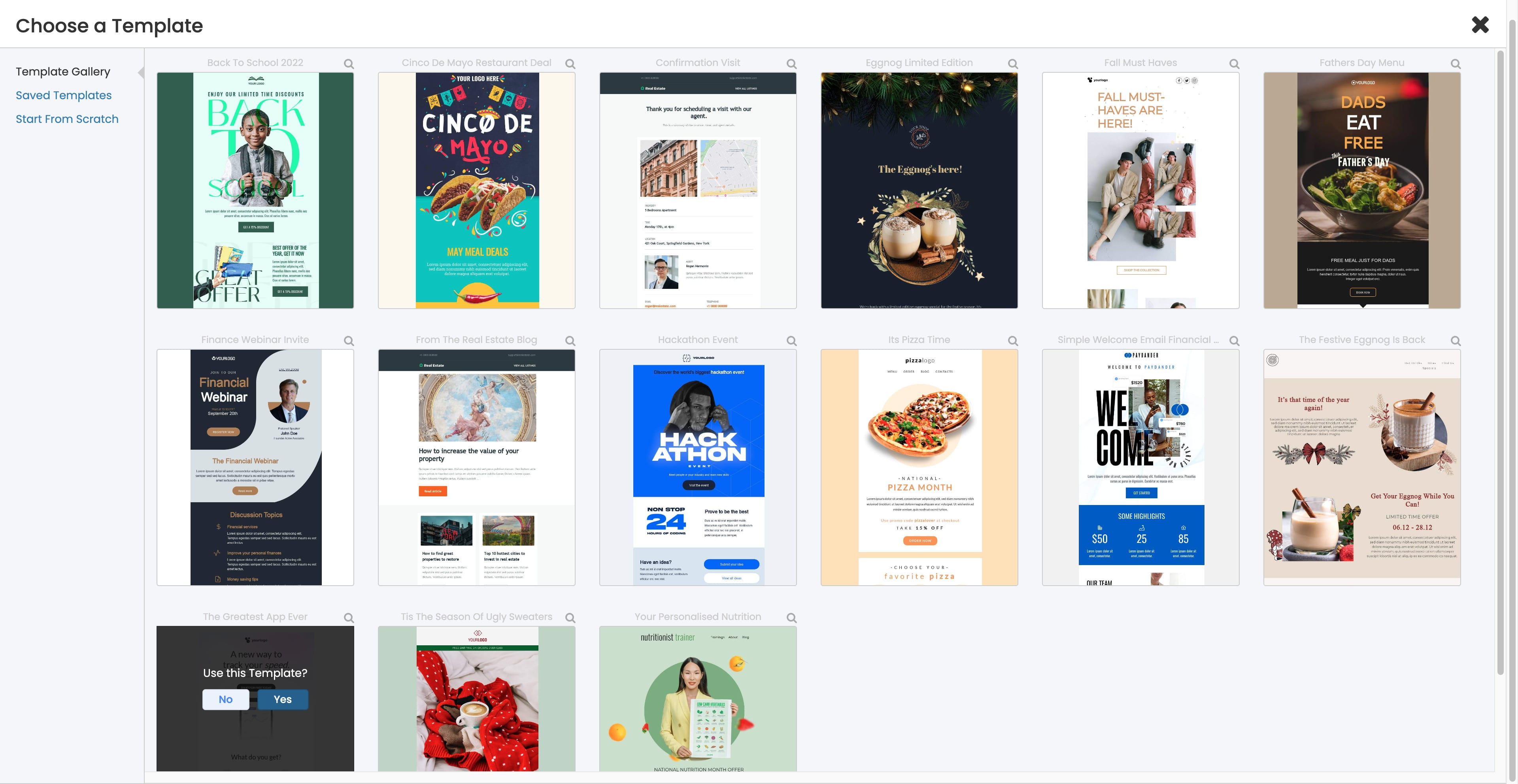
Click this icon
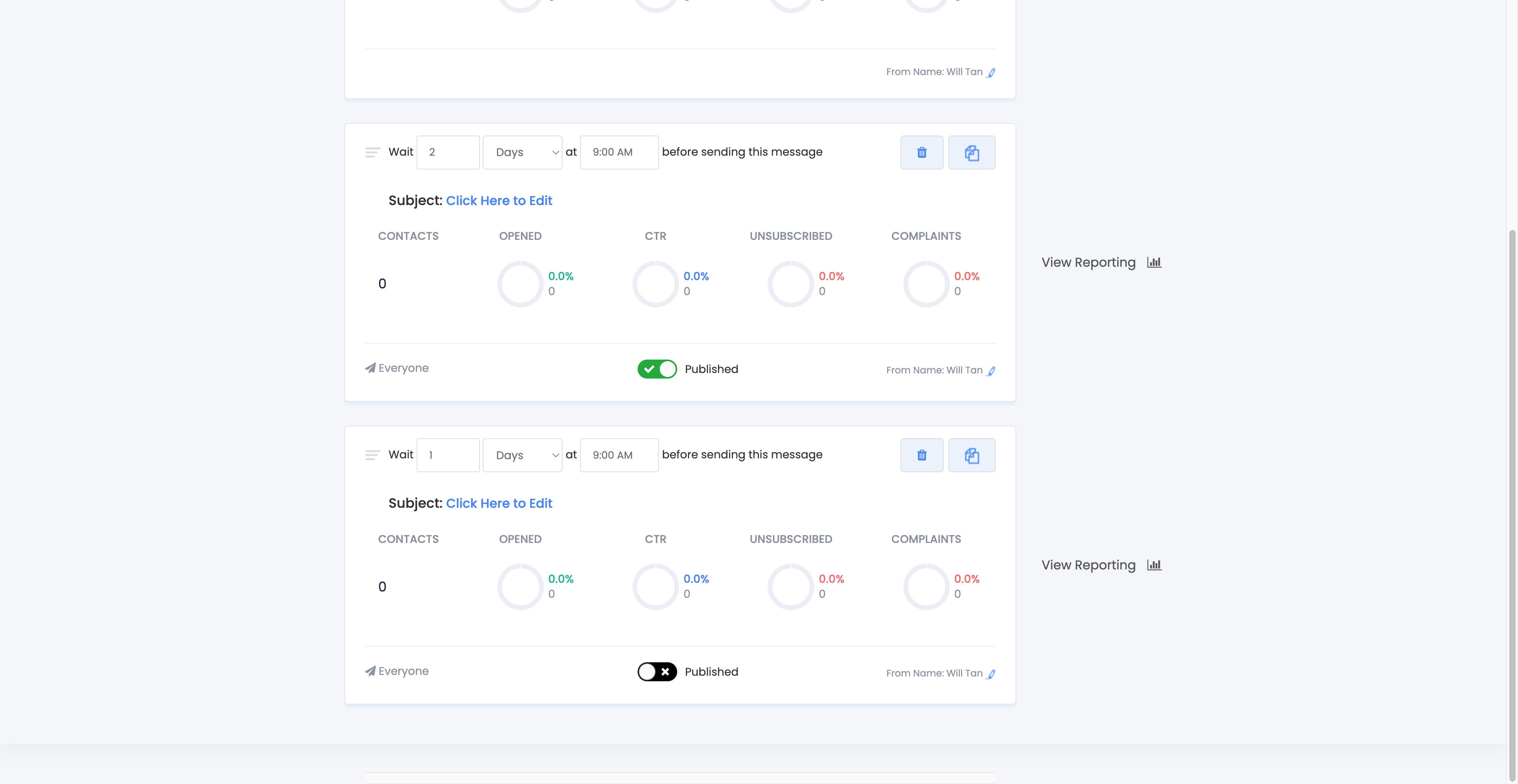
Click on "Click Here to Edit"
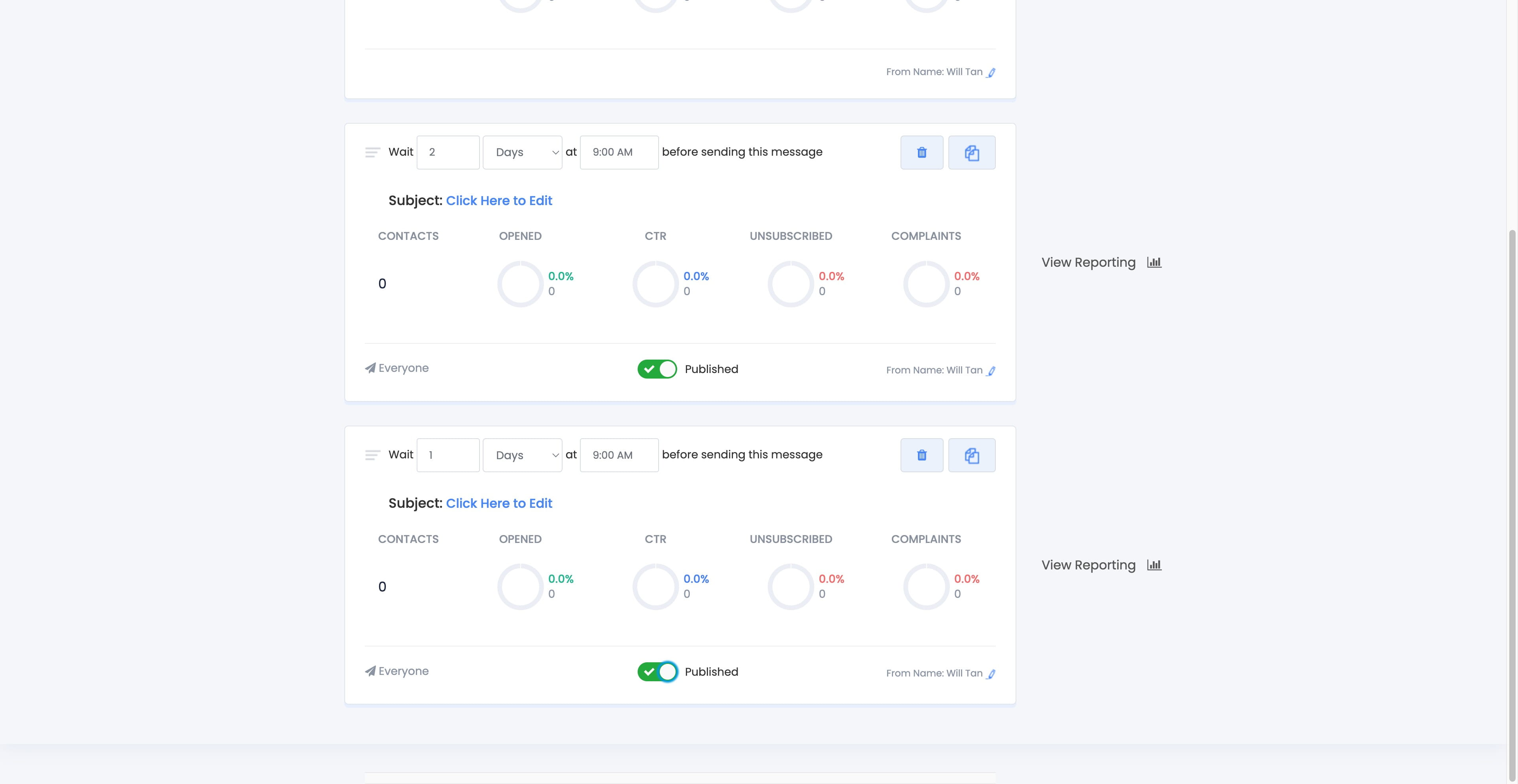
Click here
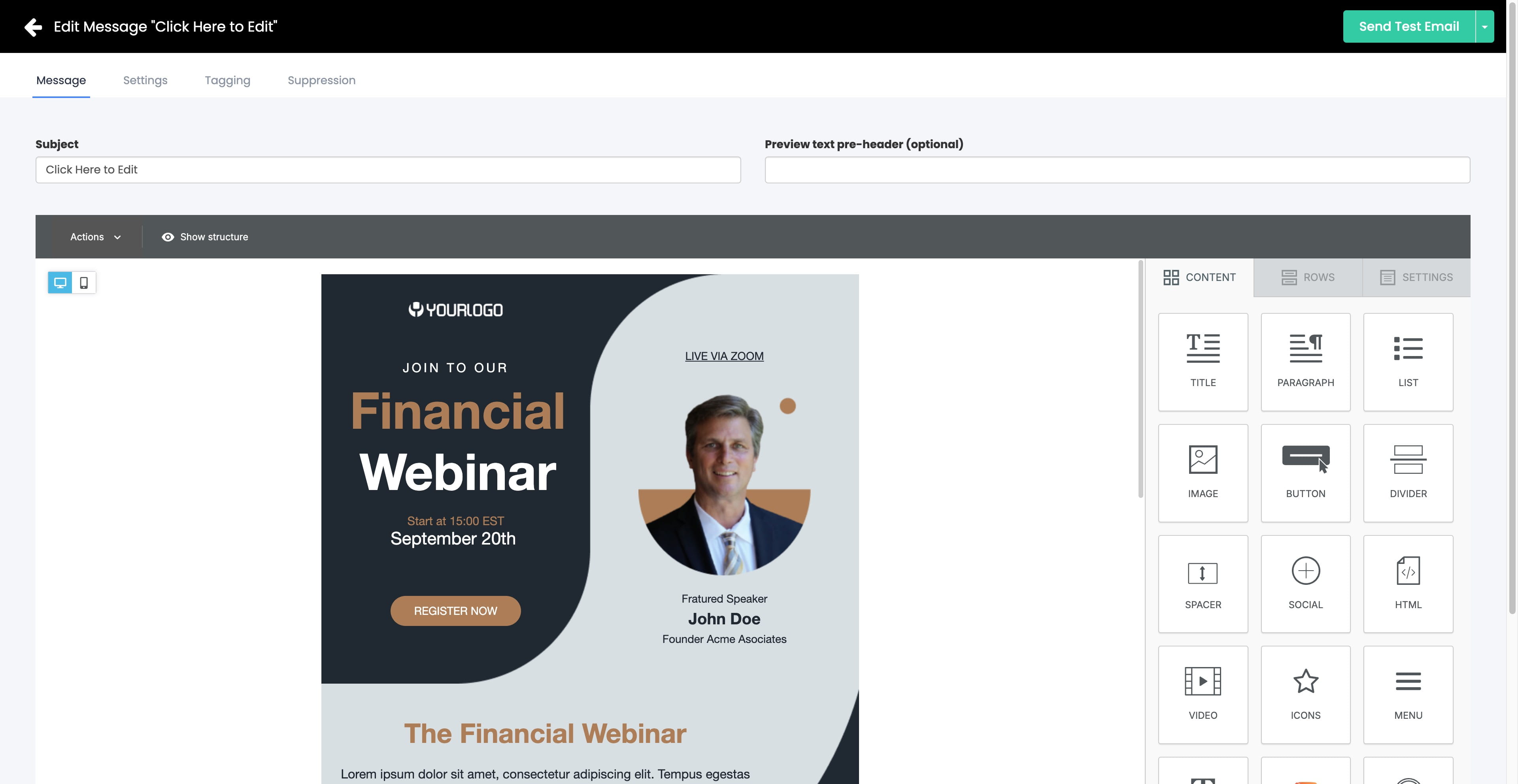
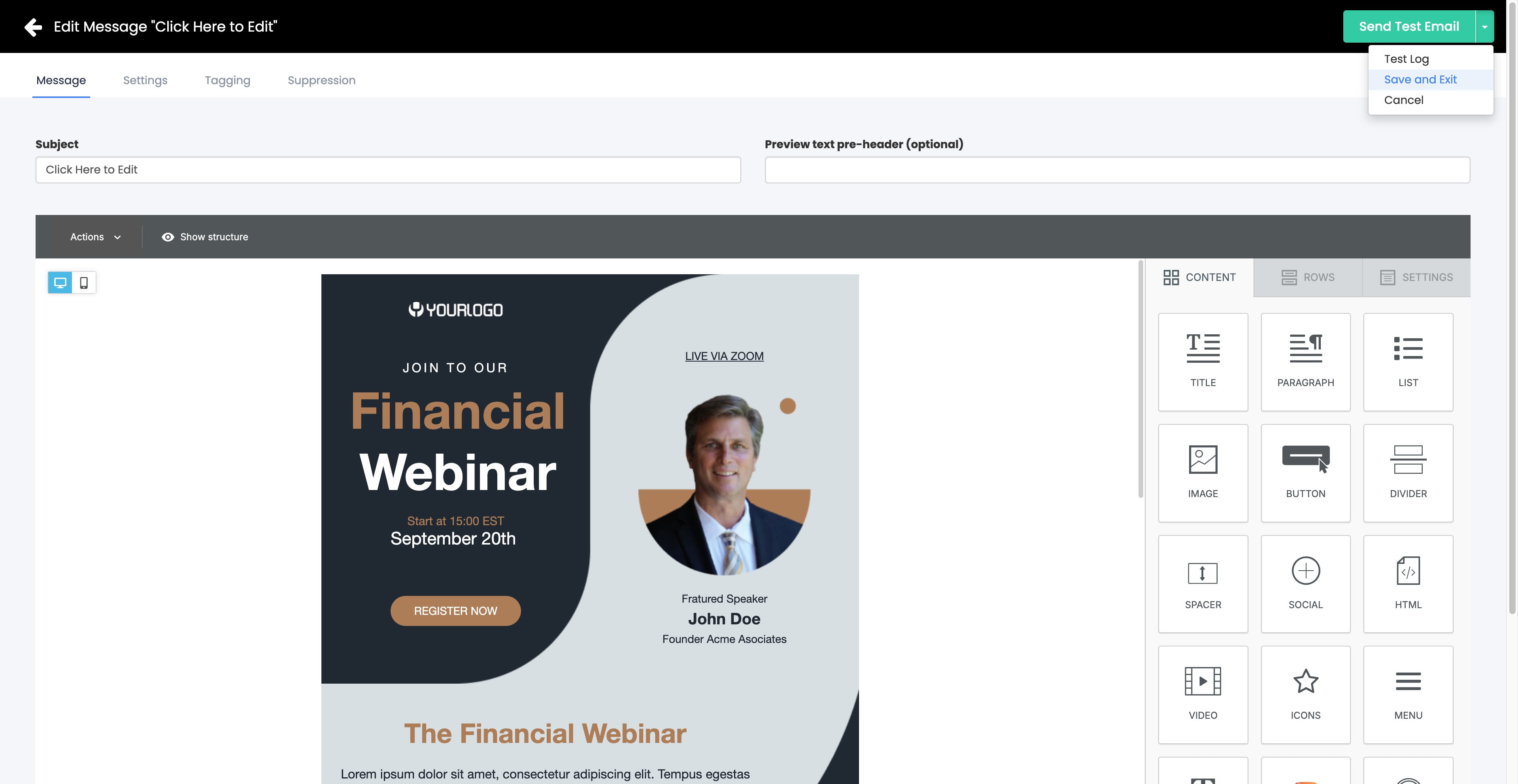
Click on "Save and Exit"
Click here
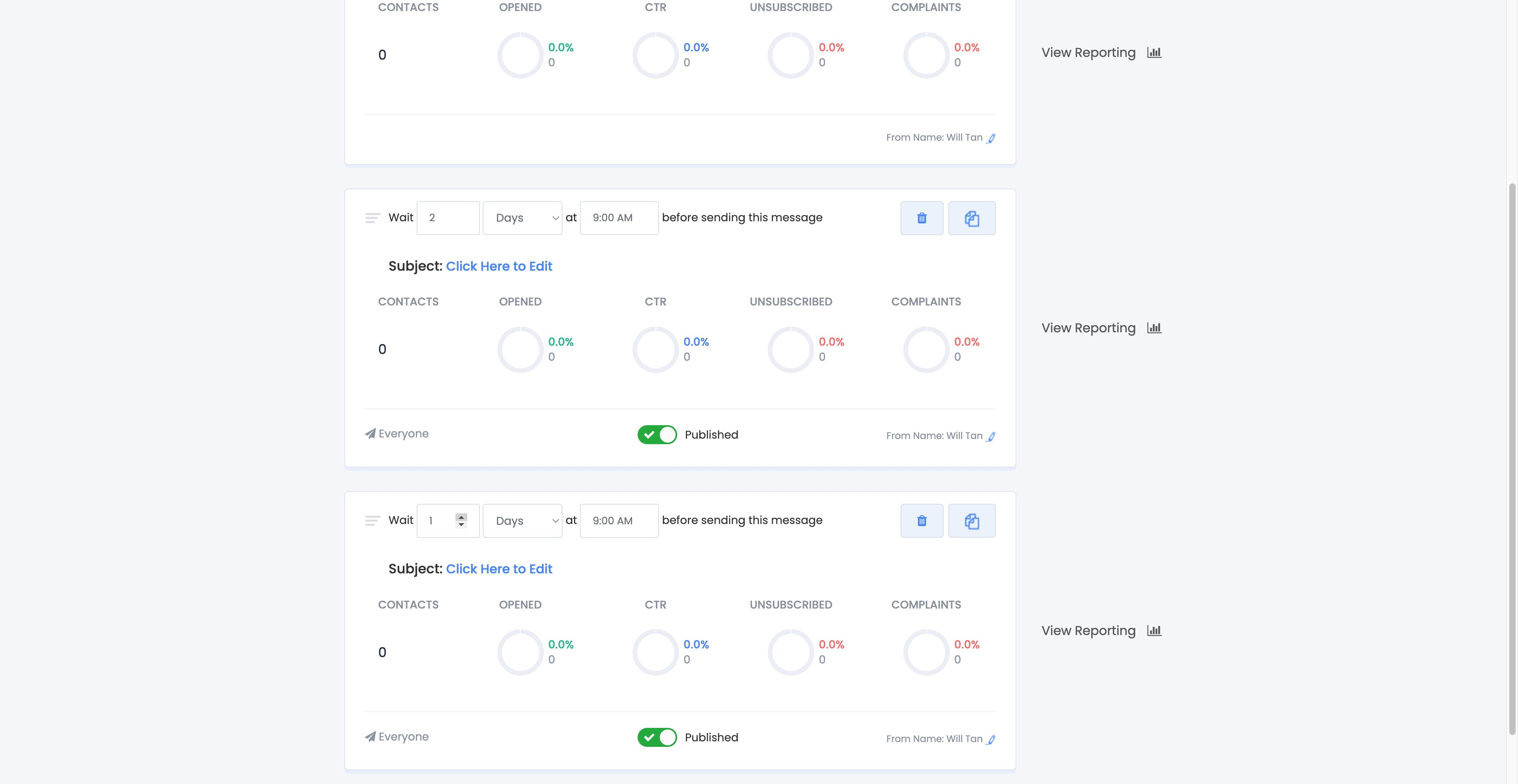
Click here
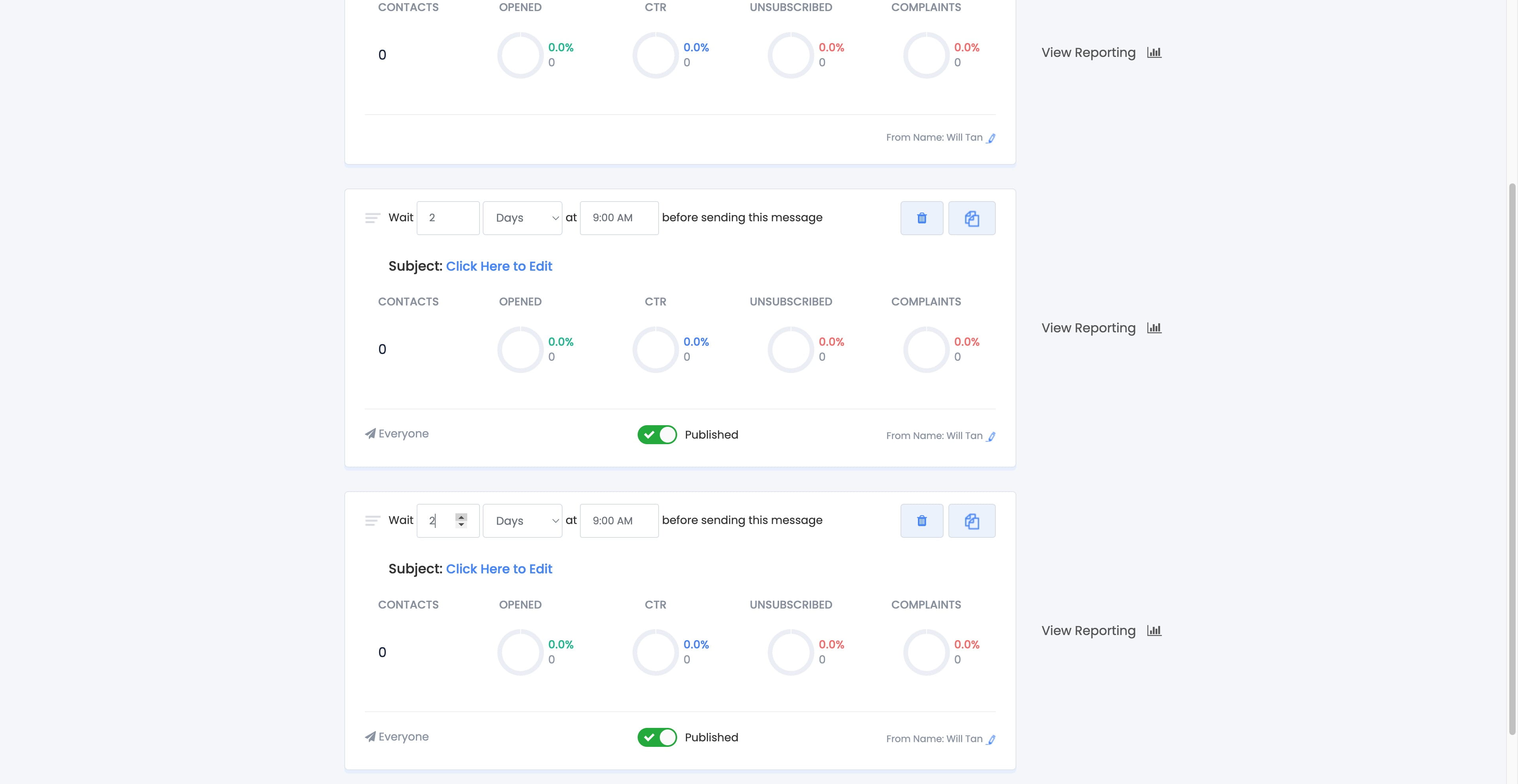
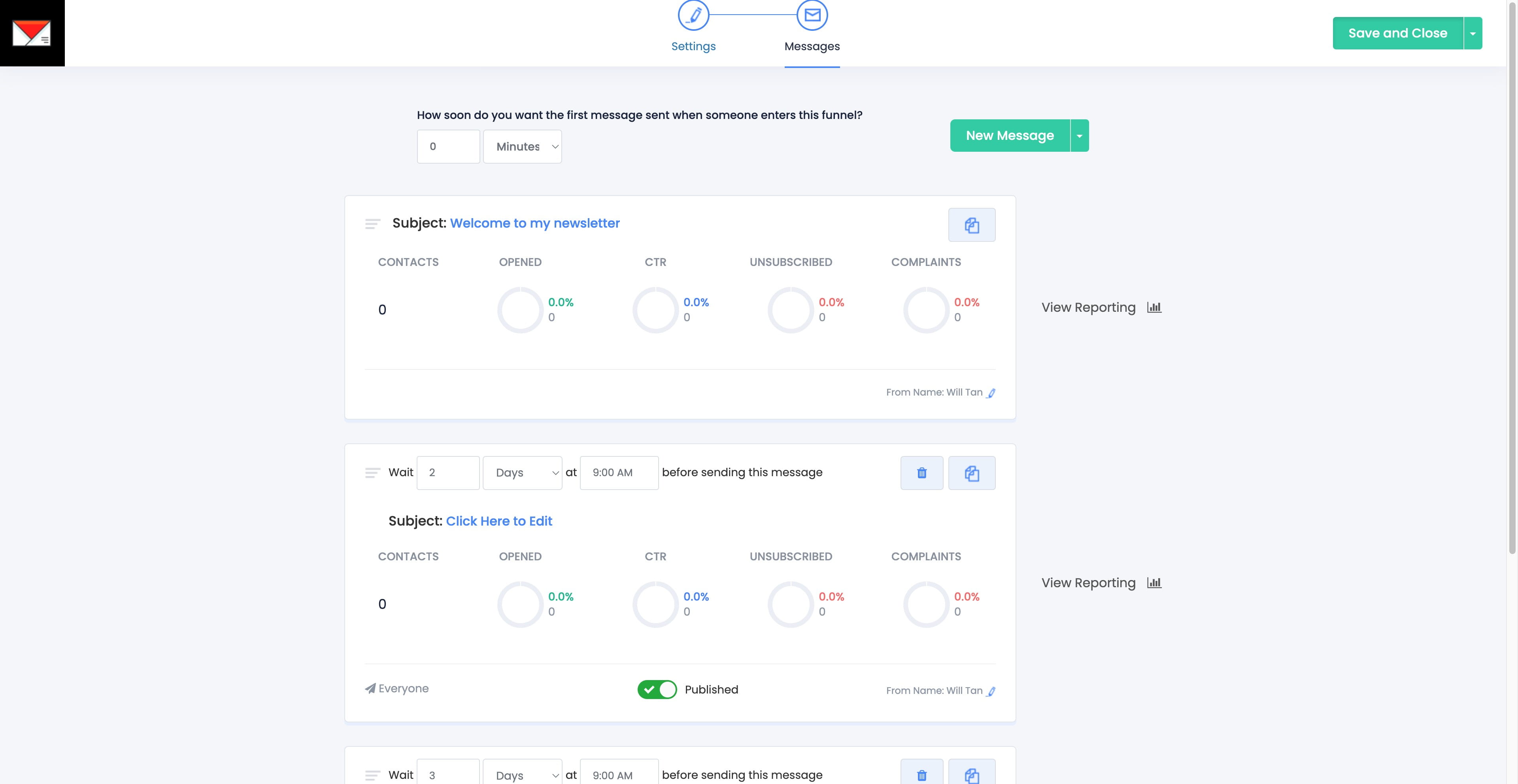
Click on "Save and Close"
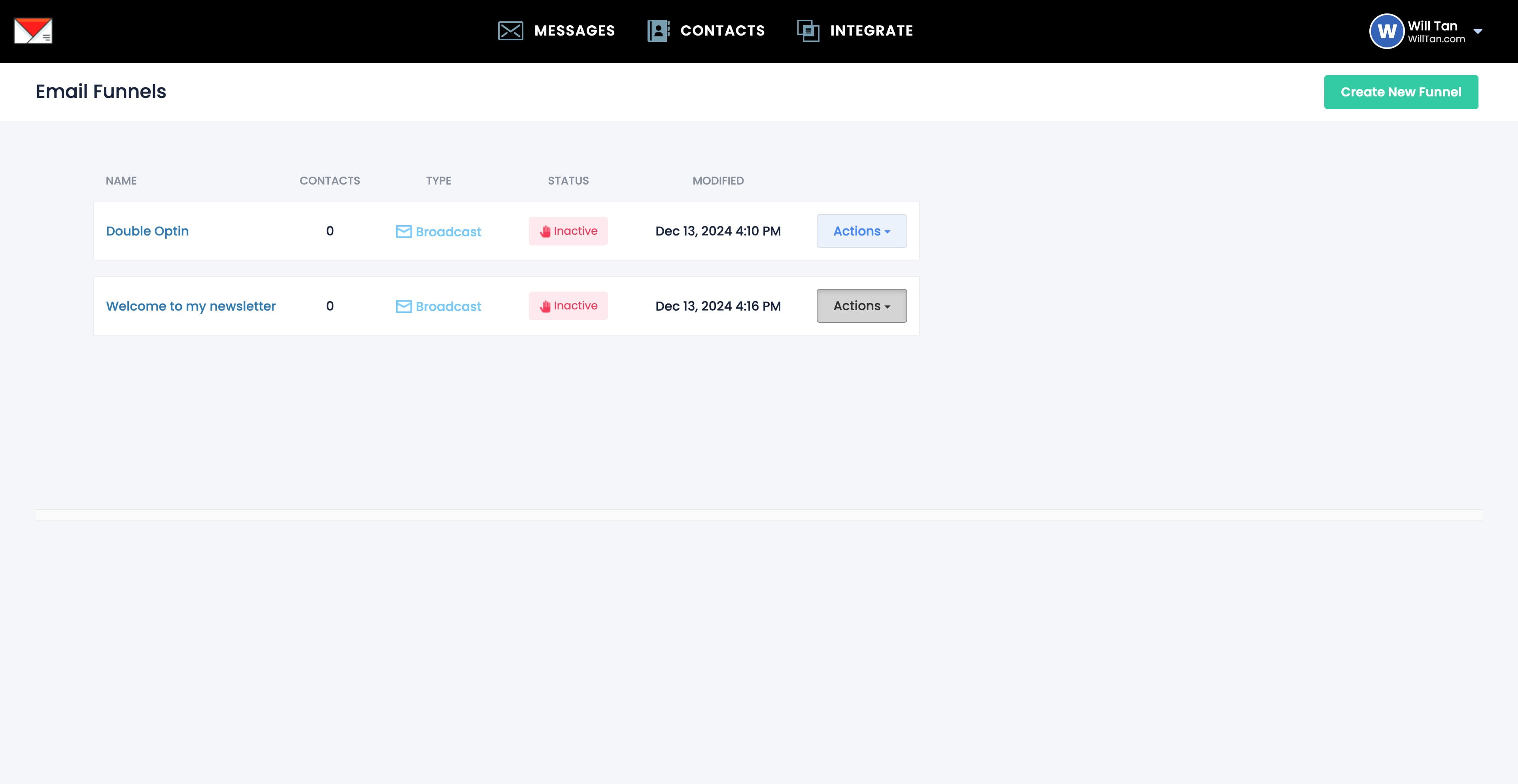
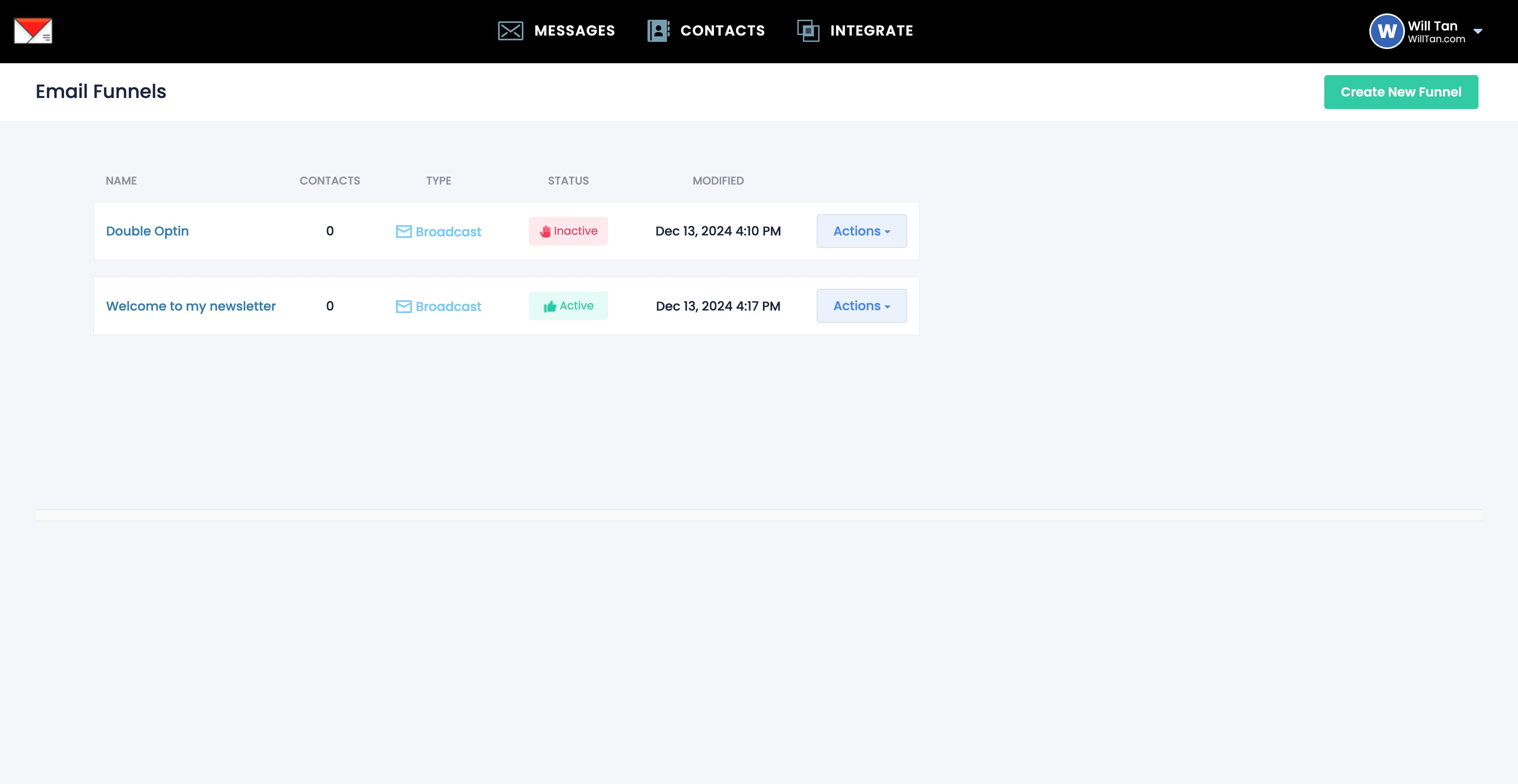
Click on "Actions"
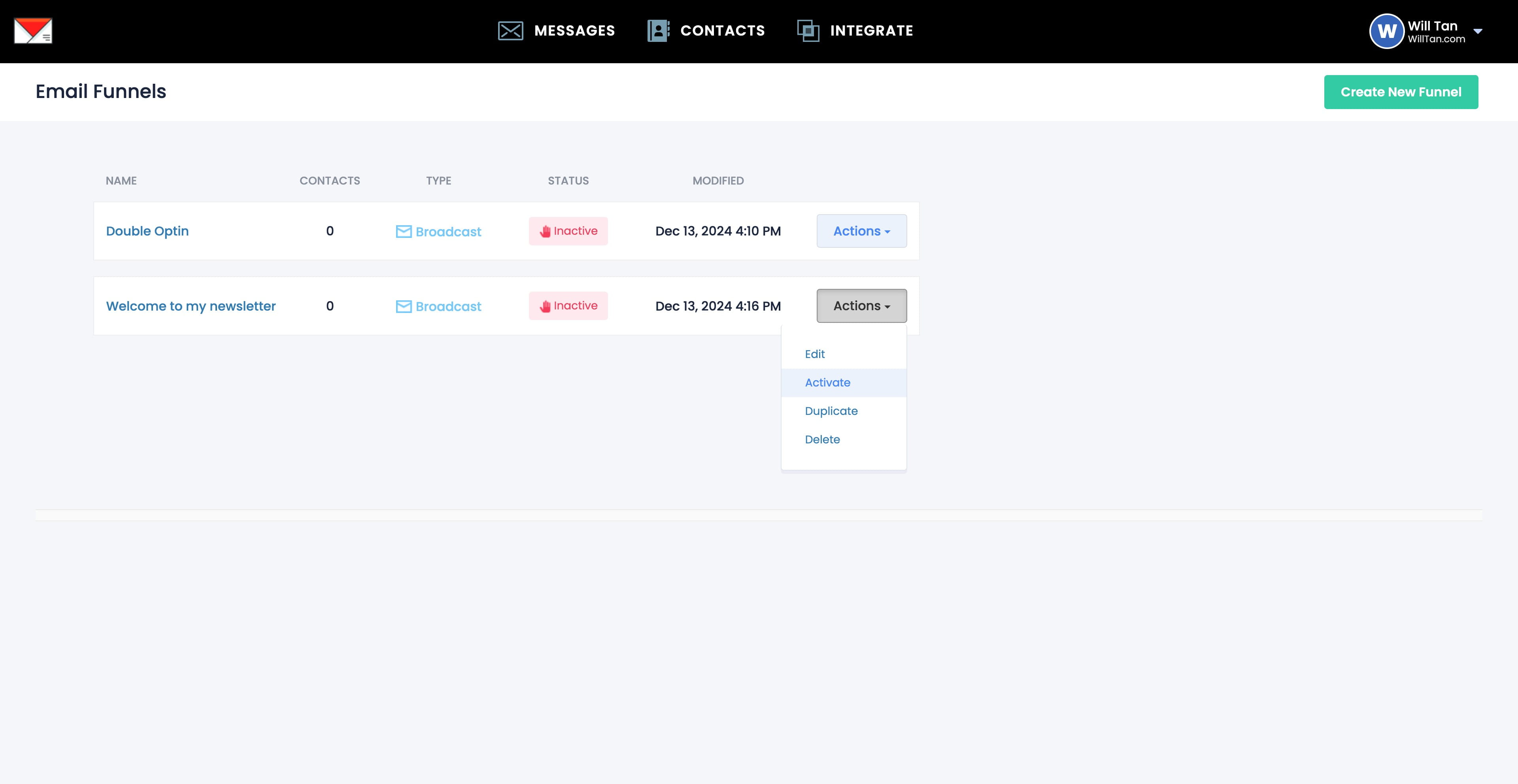
Click on "Activate"
Click this image
Done 🚀